Set who can request and approve salary changes
هذا المحتوى غير متوفر بلغتك بعد.
Salary changes are requested and approved on a person’s Salary History page, which opens from Salary History on their profile. Settings › People › Salary Settings holds five settings for them. Only two of them are enforced by Anima HR; the other three only show or hide buttons. Who can actually request and approve is decided by roles.
Change the salary settings
Section titled “Change the salary settings”-
Select Settings in the menu bar. If you’re an Admin, turn on admin mode first: select your name at the top right, then Elevate to Admin.
-
Open People, then the Salary Settings tab.
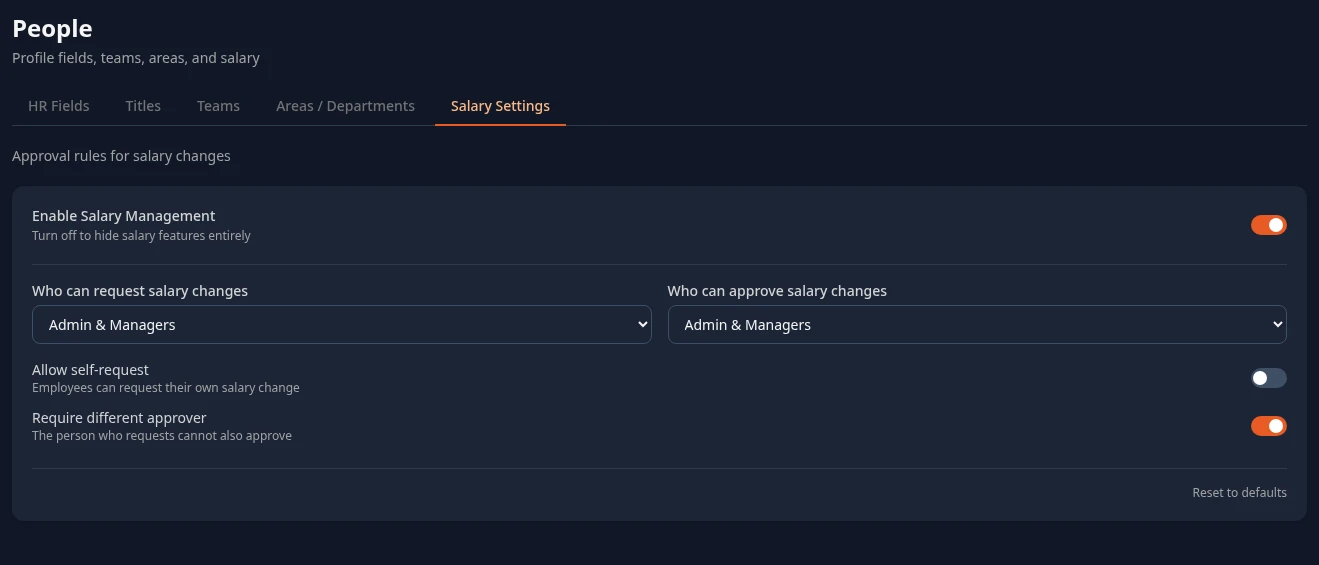
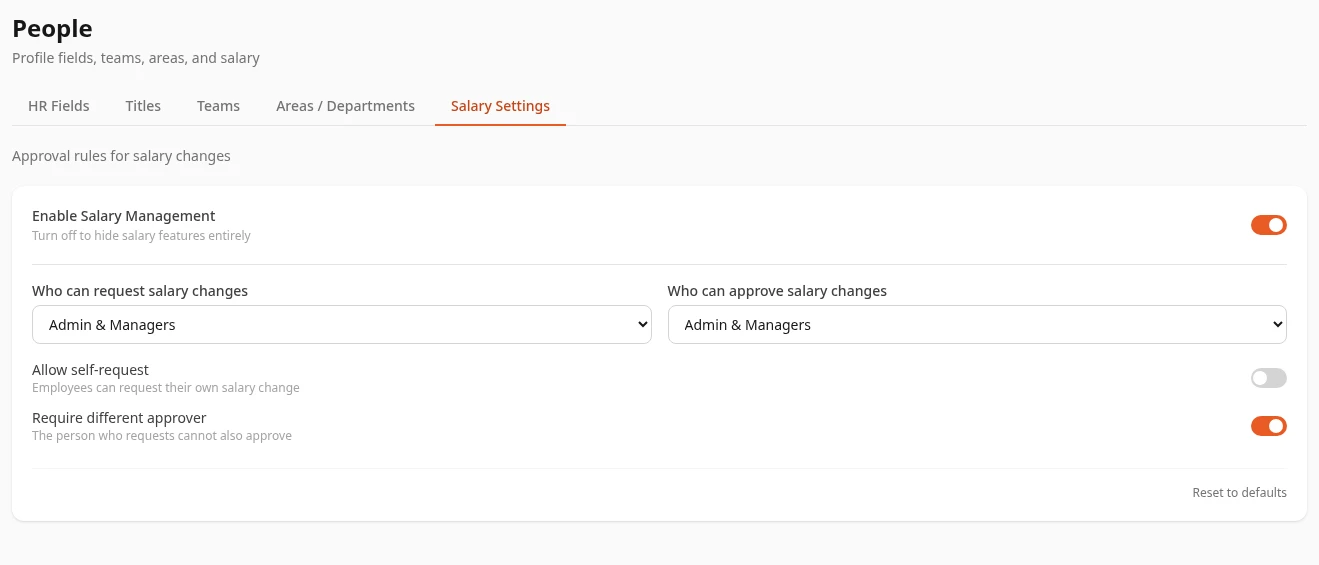
-
Change what you need, then select Save changes in the bar at the bottom of the page.
What each setting does
Section titled “What each setting does”| Setting | What it does | Default |
|---|---|---|
| Require different approver | The person who requested a change can’t approve it. Turn it off to let someone approve, on the Salary History page, a change they requested for another person. In the Inbox, nobody can approve their own request either way. Nobody can ever approve a change to their own salary. | On |
| Allow self-request | Lets employees request a change to their own salary. While it’s off, a request someone sends for themselves is refused, unless their roles let them see other people’s salaries (managers, HR and Finance can always request for themselves). It also shows + Request Salary Change on your own Salary History page. | Off |
| Enable Salary Management | Turning it off only hides + Request Salary Change on Salary History pages. Salary history, pending requests and approvals stay, and requests can still be sent. To hide salaries from people, change their roles instead. | On |
| Who can request salary changes | Only decides who sees + Request Salary Change. Admin only shows it to people whose roles include Request change in Salary, Admin & Managers also to people who can see others’ salaries, Everyone (any employee) to everyone. The Employee role includes Request change, so with the standard roles all three choices show the button to the same people. Who can really send a request doesn’t change. | Admin & Managers |
| Who can approve salary changes | Only decides who sees Approve and Reject on Salary History. Admin only shows them only to people who can approve for everyone; Admin & Managers to anyone who can approve for someone. With the standard roles only HR Admins and Admins in admin mode can approve, so both choices look the same. Approvals in the Inbox don’t follow it. | Admin & Managers |
Who can request a change
Section titled “Who can request a change”A request is accepted when the person sending it has Request change in Salary and can see the employee’s salary history. With the standard roles:
- Managers can request a change for anyone in their org: their direct reports and the people below them.
- HR Admins, Finance and Admins in admin mode can request a change for anyone, because they see everyone’s salary.
- Employees can request a change for themselves only when Allow self-request is on.
Who approves a change
Section titled “Who approves a change”A new request starts the Salary Change Approval flow, which you can edit in Settings › Approvals. By default it asks for Manager approval, then HR sign-off. Each approver finds the request in their Inbox. HR Admins, and Admins in admin mode, can also approve or reject it on the person’s Salary History page. See Inbox approvals.
The flow’s description says the CEO reviews increases above 20%, but the flow has no such step.
Can’t see this?
Section titled “Can’t see this?”- No People card in Settings. The People module is off, or you’re an Admin and admin mode is off. See Turn modules on and off.
- Save says you don’t have permission. Saving needs Manage settings in the Salary rows of the roles matrix.