Plans and features
هذا المحتوى غير متوفر بلغتك بعد.
Anima HR has three plans: Basic, Pro AI and Enterprise. Every module is included on every plan, so no HR feature is locked behind a higher one. Pro AI adds AI, and Enterprise adds support and infrastructure options. The current prices are on the pricing page.
Compare the plans
Section titled “Compare the plans”| Basic | Pro AI | Enterprise | |
|---|---|---|---|
| Price | $5 per user per month. The first 5 users are free. | $10 per user per month, for every user in the workspace | Custom, with volume pricing |
| Every module: core HR, time, pay, hiring, performance, learning, CRM and support | Yes | Yes | Yes |
| Custom roles, workflows and fields; SSO (SAML and OIDC) and MFA; API access | Yes | Yes | Yes |
| AI assistant, AI search over company documents, AI connectors, MCP server | No | Yes | Yes |
| Where your data lives | 1 region you choose | 1 region you choose | Replication across several regions |
| Support | Priority 24/7 support by email and phone, a dedicated account manager and an SLA | ||
| Custom onboarding and migration, your own domain, dedicated infrastructure | No | No | Yes |
All plans are billed monthly, with no contracts, and there’s no annual billing. For example, 25 users cost $100 per month on Basic (20 paid users × $5), and $250 per month on Pro AI (25 users × $10).
What Pro AI adds
Section titled “What Pro AI adds”- The AI assistant (Chat in the menu bar) answers questions from your HR data, and searches the company documents each person can open. It follows the same roles and permissions as the rest of the app, so each person only gets answers from data they’re allowed to see.
- AI connectors let the assistant work with other apps your company uses.
- The MCP server lets people connect their own AI client to Anima HR.
- Admin controls let you choose which data AI can read and revoke any connection.
In admin mode, admins turn the assistant on or off with the switch on the Chat card in Settings. Connectors and the MCP server each have their own switch, on the Connectors and Server Settings tabs of Settings › AI connections (MCP).
Open the Billing page
Section titled “Open the Billing page”The Billing page shows your workspace’s plan, payment cards and invoices.
-
Select your name in the top bar, then Elevate to Admin.
-
Select Settings at the bottom of the menu bar, then System.
-
Select the Billing tab.
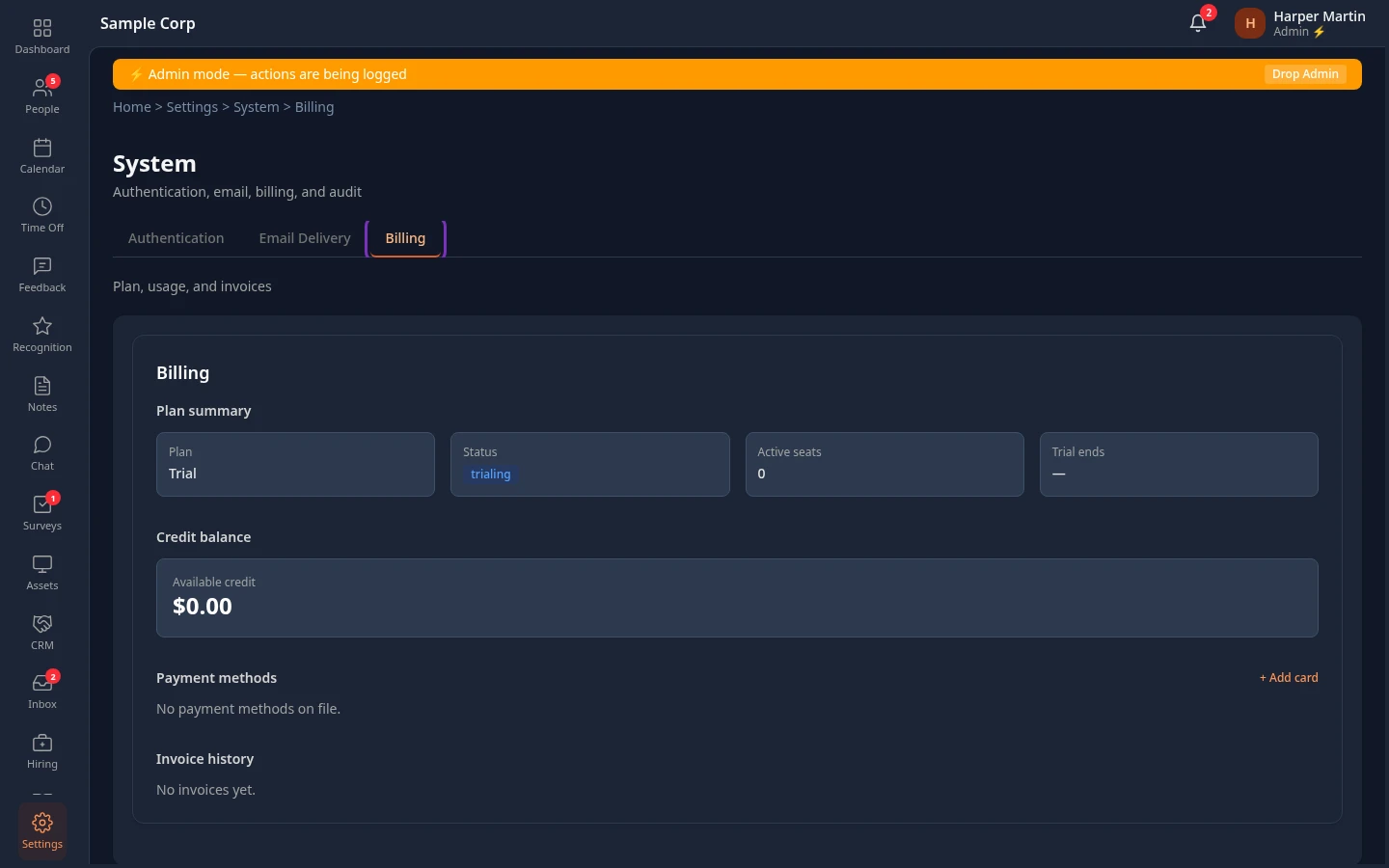
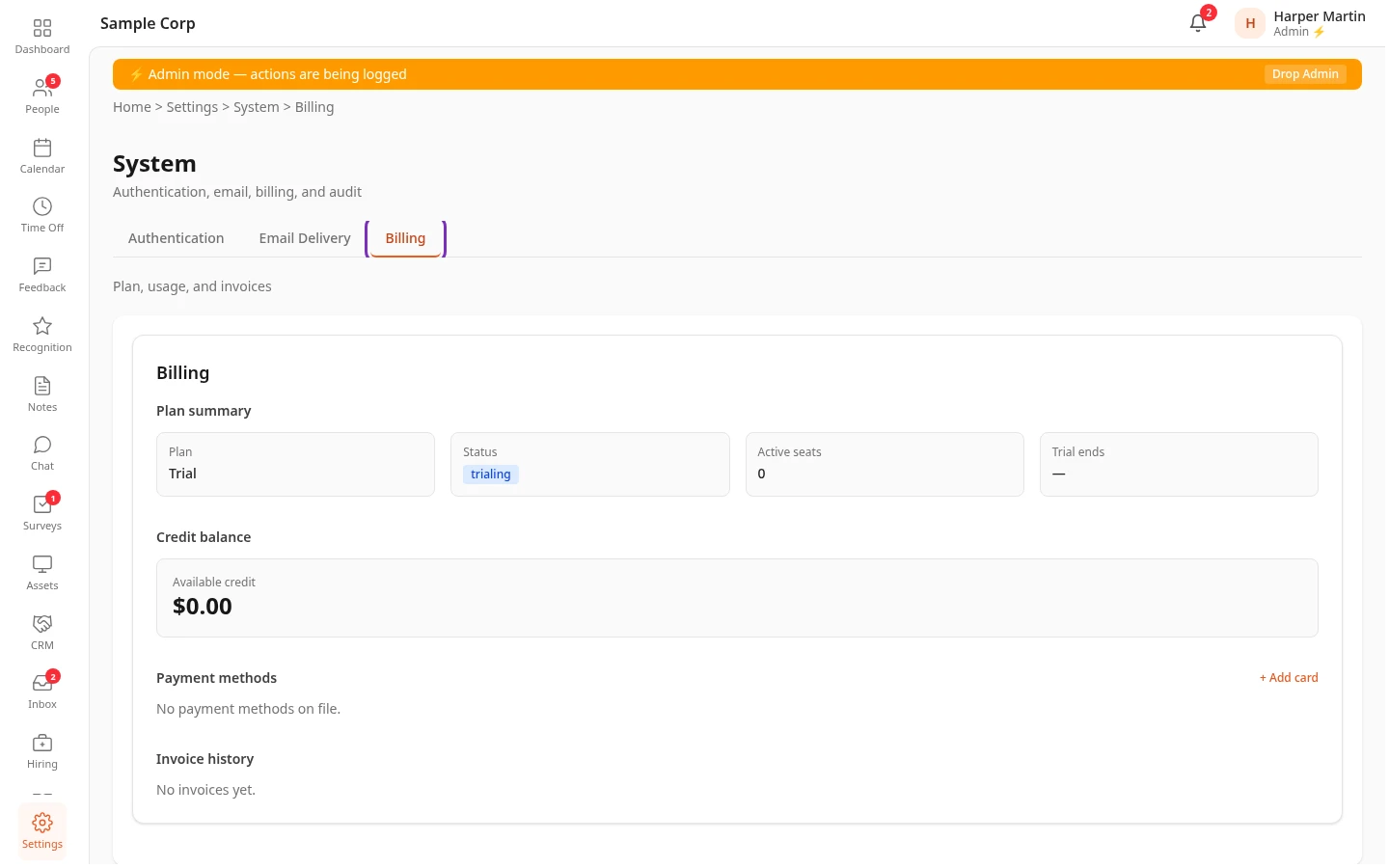
HR Admins see the System card, but not its Billing tab. To let someone else manage billing, an Admin in admin mode gives them a role with both Manage billing and Manage settings: the System card needs Manage settings, and the Billing tab needs Manage billing. Only an Admin in admin mode can give or take away a role with Manage billing.
What the Billing page shows
Section titled “What the Billing page shows”| Section | What it shows |
|---|---|
| Plan summary | Plan, Status, Active seats and Trial ends. If your plan has a user limit, Active seats shows how many are used out of the limit. |
| Credit balance | Your Available credit. To prepay, choose an amount under Add credits, then select the Buy button below the amounts. The amount is charged to your default card, and some amounts come with bonus credit, shown as a percentage. Each month, your credit is used before your card is charged. |
| Payment methods | Your cards. Select + Add card, enter the card details, then Save card. Set as default chooses the card to charge, and Remove deletes a card. |
| Invoice history | The Date, Amount, Seats and Status of each invoice. Select an invoice with ▸ to see its lines, such as the number of billable users. |
The Plan box uses the billing system’s names, not the ones on the pricing page:
- Trial while you set up your workspace or explore it with sample data. Your workspace isn’t charged during the trial.
- Standard once your workspace is live and paid per user.
- Enterprise for Enterprise agreements.
Status is active when billing is in order, trialing during a trial, past_due after a failed payment, and suspended or cancelled when the subscription is on hold or has ended. Trial ends shows a date only if your trial has one.
Change your plan
Section titled “Change your plan”You can’t switch plans from the Billing page yet. To move between Basic and Pro AI, or to Enterprise, contact us.
If there’s a billing problem
Section titled “If there’s a billing problem”When billing needs attention, everyone in the workspace sees a message at the top of the page:
| Message | When it shows | What to do |
|---|---|---|
| Your last payment failed. Please update your payment method to avoid service interruption. | A payment didn’t go through. | On the Billing page, add a working card or set another card as default. |
| Your workspace has been suspended. Please resolve your billing to restore access. | The workspace was suspended because of a billing problem. | Update your payment method on the Billing page. |
| Your trial ends in 5 days. Add a payment method to keep your team’s access. | 7 days or fewer before your trial’s end date. The number counts down. | Add a card on the Billing page. |
| Your free trial has ended. Add a payment method to continue. | After your trial’s end date. | Add a card on the Billing page. |
People who can manage billing see a Manage billing link next to the message. It opens Settings; go to System › Billing from there. Everyone else sees Contact your admin.
Related
Section titled “Related”- Welcome to Anima HR
- Admin quick start
- Go-live checklist
- Pricing and FAQ on animahr.io