Your documents
هذا المحتوى غير متوفر بلغتك بعد.
Your Documents page keeps files about you, such as certificates, ID scans or signed forms. You upload your own files there and choose who can open each one. HR can add files to it too.
Open your documents
Section titled “Open your documents”-
Select your name in the top bar, then View Profile.
-
Select Documents.
The page shows your name and Documents, and how many files you can see, such as Documents: 3.
Upload a document
Section titled “Upload a document”-
In the list next to Upload document, choose who can open the file: Only me and HR, Me, my managers and HR, HR only or All employees. See Who can open your documents.
-
Select Upload document and choose the file.
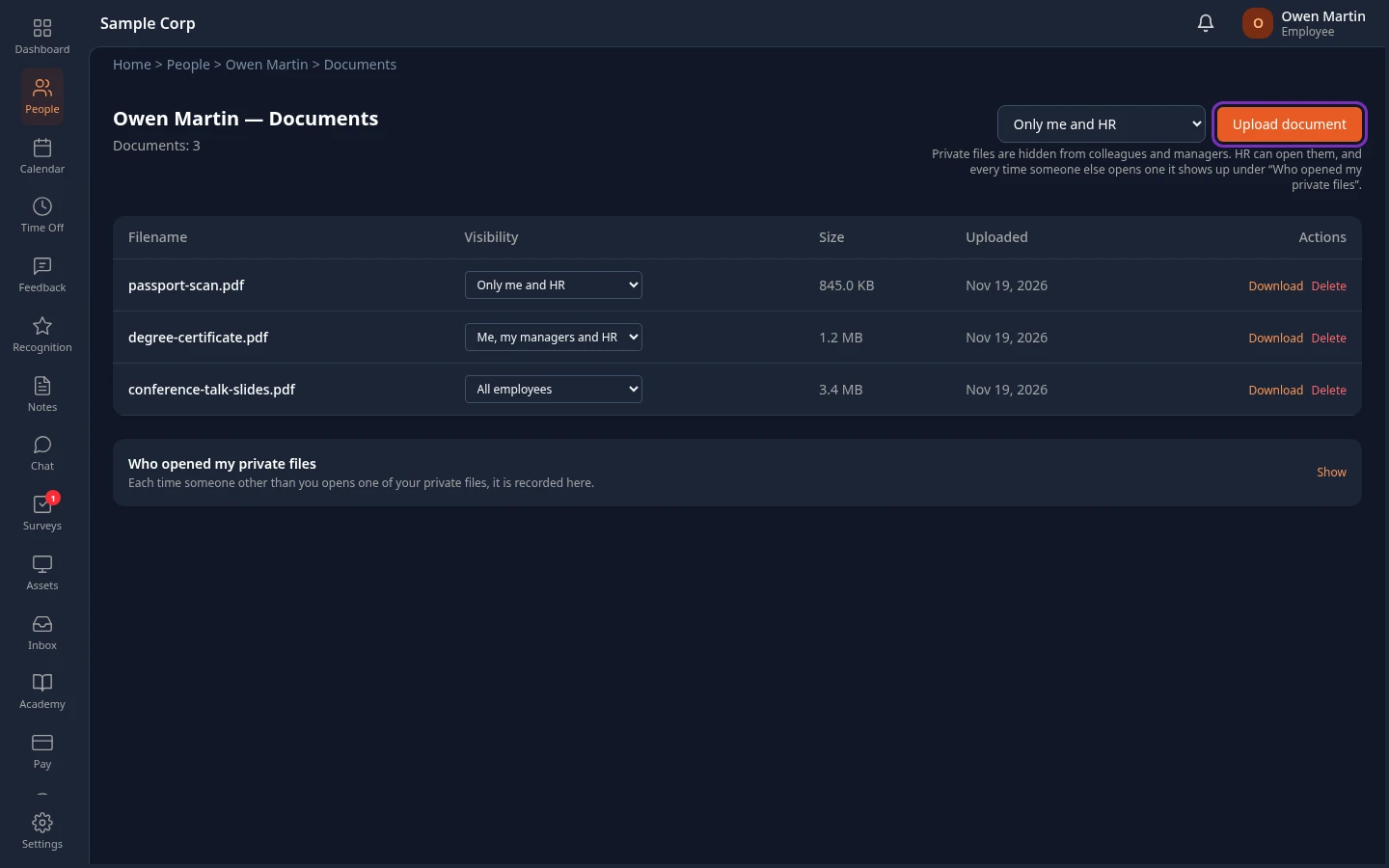
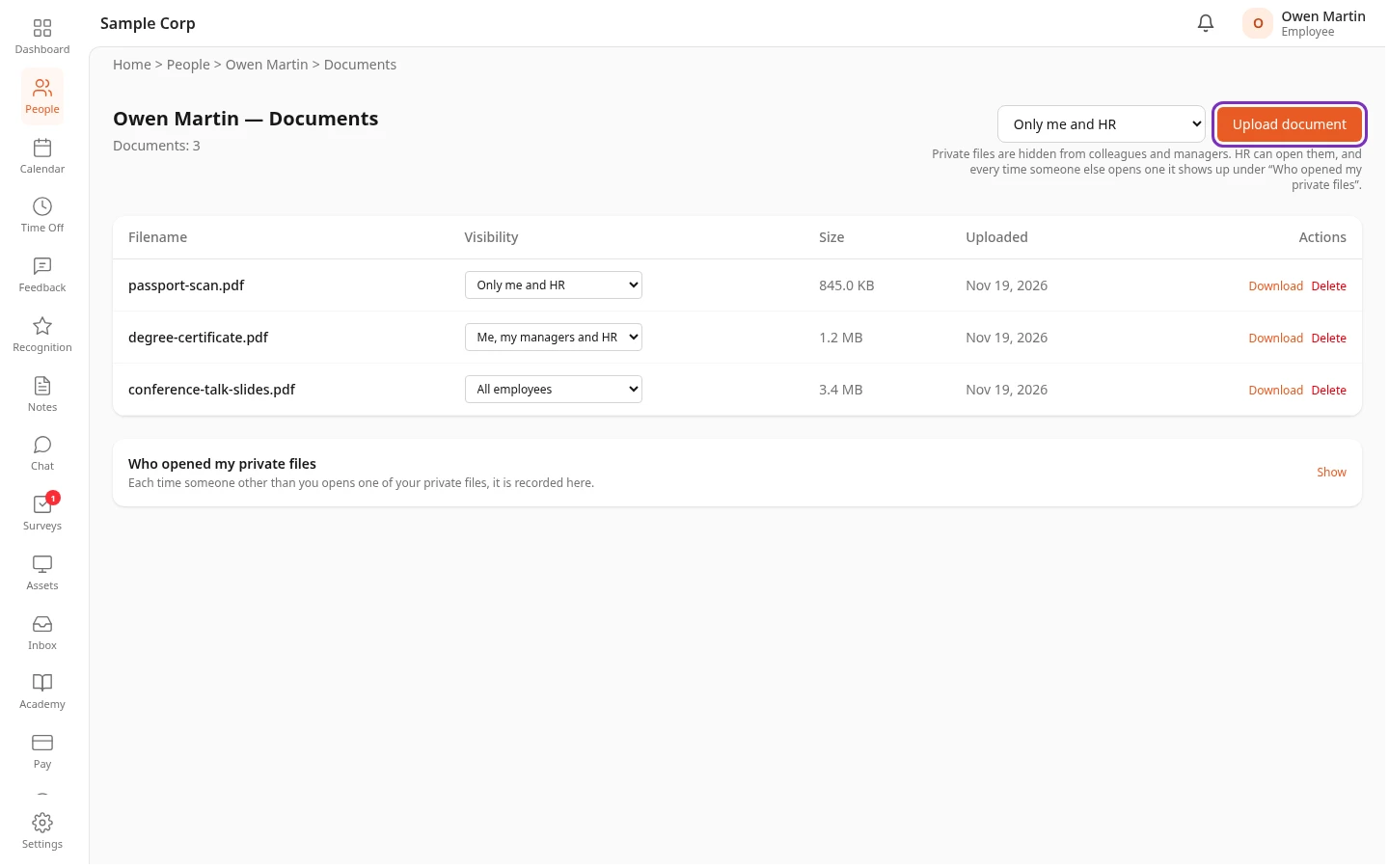
Document uploaded appears and the file is added to the list. You upload one file at a time.
- A file can be up to 50 MB. A bigger one is refused with File too large (max 50 MB).
- Program files can’t be uploaded:
.exe,.msi,.dmg,.app,.jar,.bat,.cmd,.com,.ps1,.sh,.scr,.vbsand.wsfare refused with Executable files are not allowed. - Spaces in the file name are replaced with hyphens, and other symbols with underscores.
Your list of documents
Section titled “Your list of documents”The list shows each file’s Filename, who can open it under Visibility, its Size and the date it was Uploaded.
- Select Download to save a copy of a file.
- For a file you uploaded yourself, choose a different option under Visibility to change who can open it. The change applies straight away.
- To delete a file you uploaded, select Delete, then confirm Delete this document?.
- Files HR added for you are listed with who can open them. You can download them, but you can’t change or delete them.
No documents means there’s nothing on your page yet.
Who can open your documents
Section titled “Who can open your documents”| Option | Who can open the file |
|---|---|
| Only me and HR | You and HR. Your managers and colleagues can’t. This is the option the list starts on. |
| Me, my managers and HR | You, your manager and the managers above them, and HR. |
| HR only | Only HR. Once the file is uploaded, you can’t see it either, even if you uploaded it. |
| All employees | Everyone in your company. |
“HR” means people with the HR Admin role, and Admins while they’re in admin mode.
Your manager and HR have a Documents link on your profile. On your Documents page, your manager only sees the files shared with managers or with all employees. Colleagues don’t have the link, and your files don’t show for them even if they open the page.
See who opened your private files
Section titled “See who opened your private files”At the bottom of the page, Who opened my private files lists each time someone other than you opened one of your files shared as Only me and HR. Select Show to see the list: Who opened which File, When, and How.
- Opens by the person who uploaded a file aren’t listed. If HR uploaded a file for you, HR opening it doesn’t show here.
- Files shared as HR only aren’t in your list.
- If nobody has, it says Nobody else has opened these files. Load more shows older entries. Entries are kept for two years.
Can’t see this?
Section titled “Can’t see this?”- There’s no Documents link on your profile. Open your profile from your name in the top bar, then View Profile. If the link still isn’t there, you or your admin hid it: see Hide sections on some pages.
- A file HR told you about isn’t in your list. HR shared it as HR only, which hides it from you. Ask them to share it with you.