Set up attendance tracking
هذا المحتوى غير متوفر بلغتك بعد.
Settings › Time & Attendance › Attendance decides who clocks in and out by default, and sets the work day that late arrivals and overtime are measured against. People clock in and out on the Attendance tab of the Time & Attendance page: see Check in and out.
Only some of the settings on this tab change anything yet. This page says which.
Open the attendance settings
Section titled “Open the attendance settings”-
Select Settings in the menu bar. If you’re an Admin, turn on admin mode first: select your name at the top right, then Elevate to Admin.
-
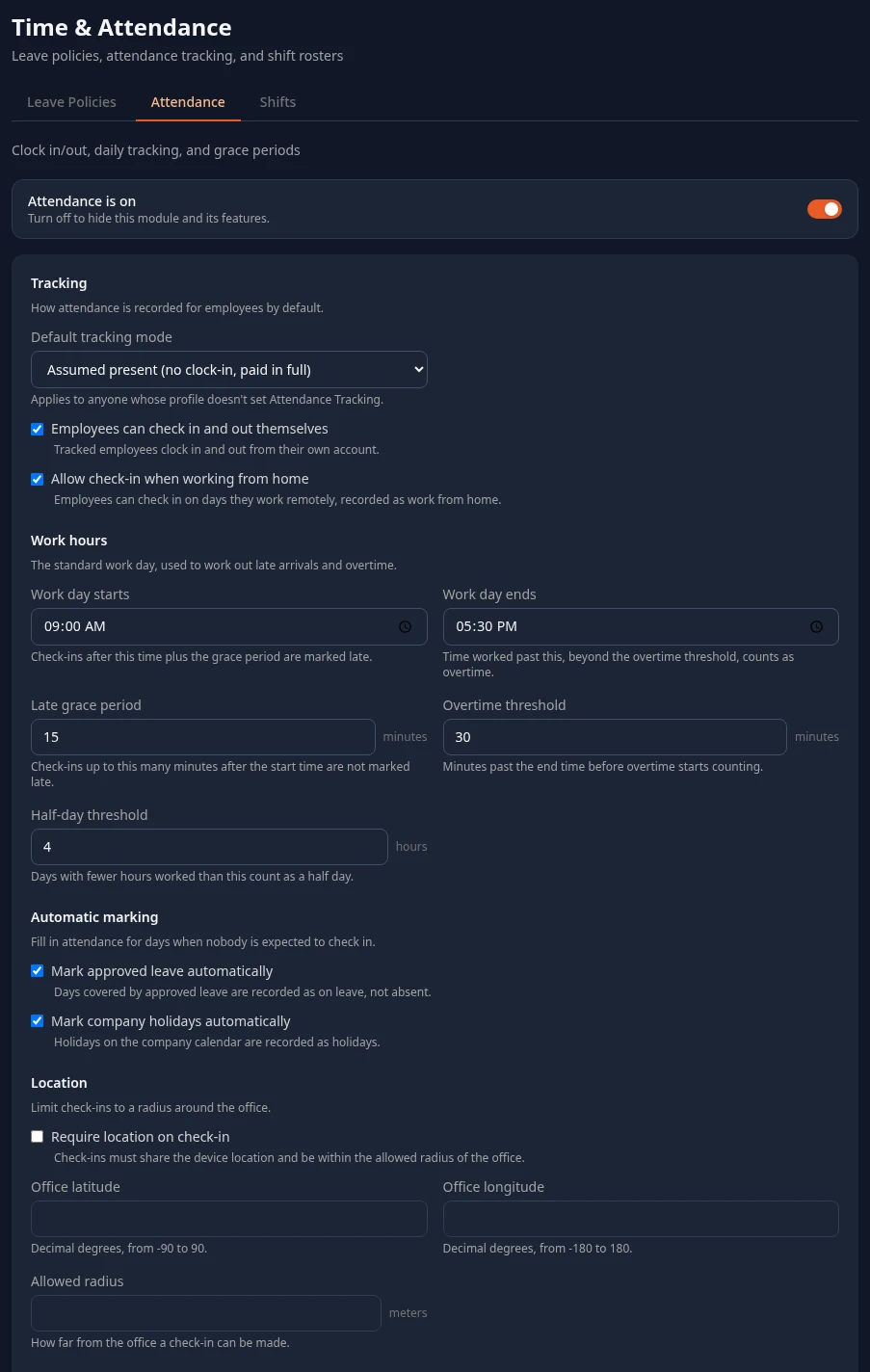
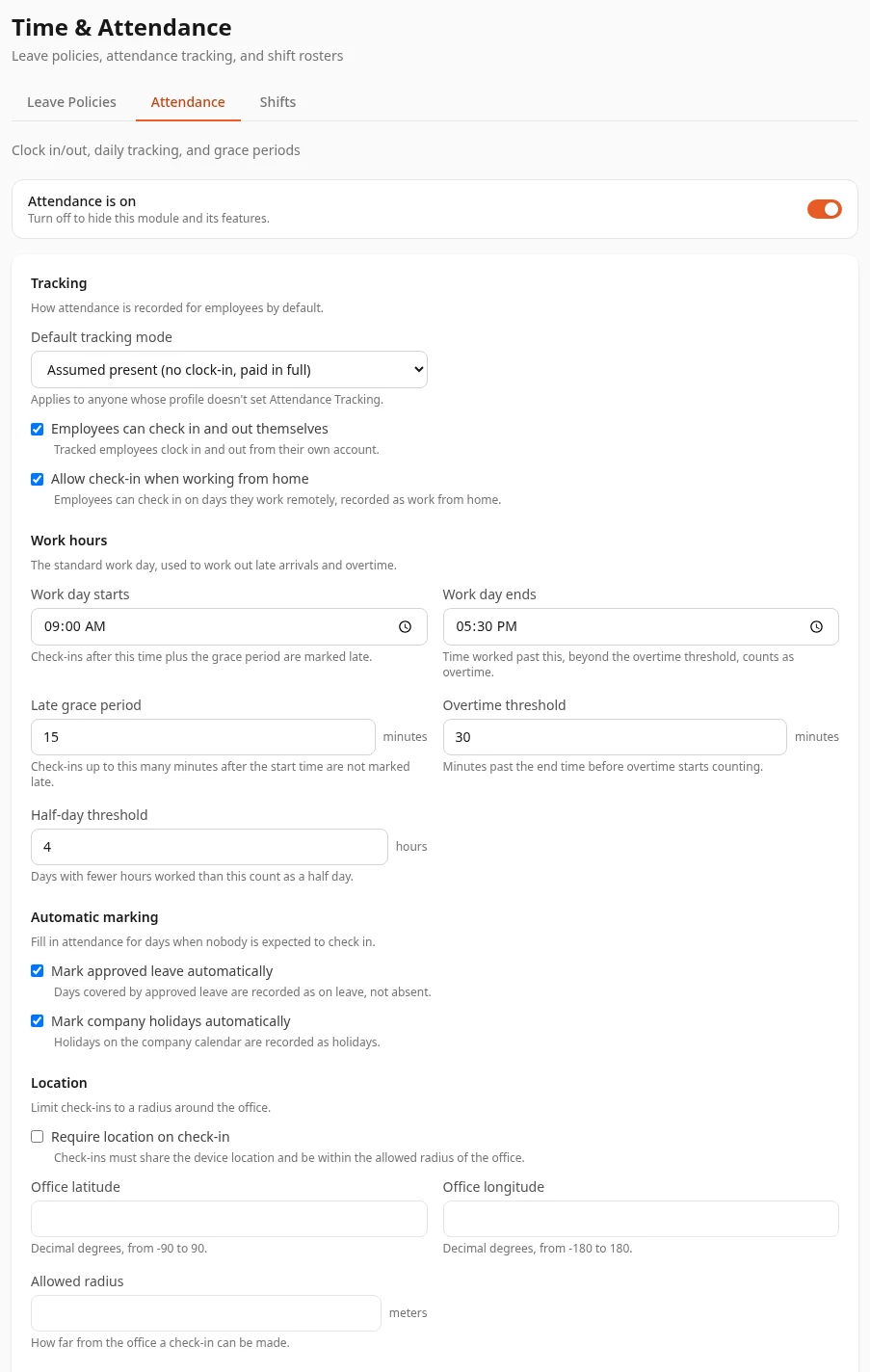
Open Time & Attendance, then the Attendance tab.
-
Change what you need, then select Save changes in the bar at the bottom of the page.
Attendance is on, at the top of the tab, turns the Attendance module on or off for everyone. It’s off in a new workspace. See Turn modules on and off.
Who clocks in
Section titled “Who clocks in”| Setting | What it does | Default |
|---|---|---|
| Default tracking mode | Whether people clock in and out. It applies to everyone whose profile has no Attendance Tracking value. Assumed present (no clock-in, paid in full) means no clocking in: the Attendance tab shows Attendance not tracked for your role — you’re recorded as present. and refuses a clock-in. Tracked (hours count toward pay) and Tracked for compliance (not paid by the hour) both show Clock In and record hours, late and overtime minutes. | Assumed present (no clock-in, paid in full) |
Things to know before you change it:
- Tracked (hours count toward pay) and Tracked for compliance (not paid by the hour) work the same way today. Payroll doesn’t read attendance, so recorded hours don’t change anyone’s pay, and Assumed present doesn’t change pay either.
- The setting applies to the whole workspace at once. Choosing a tracked mode makes everyone without their own Attendance Tracking value clock in, salaried staff included.
To set it for one person, HR opens their profile, selects Edit Profile and changes Attendance Tracking. Everyone without their own value follows this default.
Work hours
Section titled “Work hours”When someone clocks in, Anima HR compares the time with Work day starts. When they clock out, it compares the time with Work day ends. The same times apply to everyone: shift times aren’t used.
| Setting | What it does | Default |
|---|---|---|
| Work day starts | A clock-in later than this time plus the Late grace period records late minutes. Leave it empty and no one is ever late. | 09:00 |
| Late grace period | Minutes after Work day starts that still count as on time. Past it, late minutes are counted from Work day starts minus the grace: with the defaults, 09:25 records 10 late minutes. | 15 minutes |
| Work day ends | A clock-out later than this time plus the Overtime threshold records overtime. Leave it empty and overtime isn’t counted. The work day must end after it starts: overnight work days aren’t supported. | 17:30 |
| Overtime threshold | Minutes after Work day ends before overtime starts. Overtime is counted past the threshold only: with the defaults, 18:30 records 30 minutes. | 30 minutes |
The minute fields take whole numbers from 0 to 1440. Overtime only looks at the clock-out time, not at how long someone worked: a person who clocks in at 11:00 and out at 18:30 still gets 30 minutes of overtime.
Settings that have no effect yet
Section titled “Settings that have no effect yet”These settings are saved, but nothing in Anima HR uses them yet. Changing them doesn’t change how attendance works.
| Setting | What it says | What happens today | Default |
|---|---|---|---|
| Employees can check in and out themselves | Tracked employees clock in and out from their own account. | Tracked people can always clock in and out, whether it’s ticked or not. | On |
| Allow check-in when working from home | Check-ins on remote days are recorded as work from home. | Every clock-in is recorded as Present. | On |
| Half-day threshold | Days with fewer hours count as a half day. | No day is marked as a half day. | 4 hours |
| Mark approved leave automatically | Days of approved leave are recorded as on leave. | Leave isn’t added to attendance. | On |
| Mark company holidays automatically | Holidays are recorded as holidays. | Holidays aren’t added to attendance. | On |
| Require location on check-in, Office latitude, Office longitude, Allowed radius | Check-ins must be within a radius of the office. | Location isn’t checked, whatever you enter. | Off, empty |
What admins and HR can see
Section titled “What admins and HR can see”Attendance is self-service only for now. Each person sees their own month on the Attendance tab. There’s no screen for a manager’s team or for HR to see everyone’s attendance, and no way to add or correct someone’s day, such as a forgotten clock-out, in the app.
Who can change these settings
Section titled “Who can change these settings”HR Admins, and Admins in admin mode. The tab shows for roles with Manage settings in Attendance, which HR Admins have.
Can’t see this?
Section titled “Can’t see this?”- There’s no Time & Attendance card in Settings. If you’re an Admin, turn on admin mode. Other people need a role that can save one of its tabs: see Who sees what.
- The tab only shows a switch and Enable. The Attendance module is off: turn it on to edit its settings.
- People see Attendance not tracked for your role — you’re recorded as present. That’s Assumed present at work. Choose a tracked Default tracking mode.