Keep 1:1 notes about your reports
هذا المحتوى غير متوفر بلغتك بعد.
The Notes page keeps notes about your one-on-ones, grouped by person. As a manager, use it to record your 1:1s with each report: what you discussed, what you agreed and what to follow up on next time. This page covers what’s different for managers. For the basics, such as filtering the list, editing and deleting notes and making templates, see Prepare for your 1:1s.
Who can read your notes
Section titled “Who can read your notes”A note is between you and the person it’s with. Nobody else can read it, including your own manager, HR and admins. Whether the person it’s with can read it is up to you:
- 🔒 Private, the choice new notes start with, keeps the note to yourself: your report doesn’t see it on their Notes page and can’t open it.
- 👁 Shared lets your report read it.
Notes stay with the two of you when reporting lines change. When someone joins your team, you don’t see the notes their previous manager wrote. When they move to another team, you both keep your notes with each other, and their new manager doesn’t see them.
Write a note after a 1:1
Section titled “Write a note after a 1:1”-
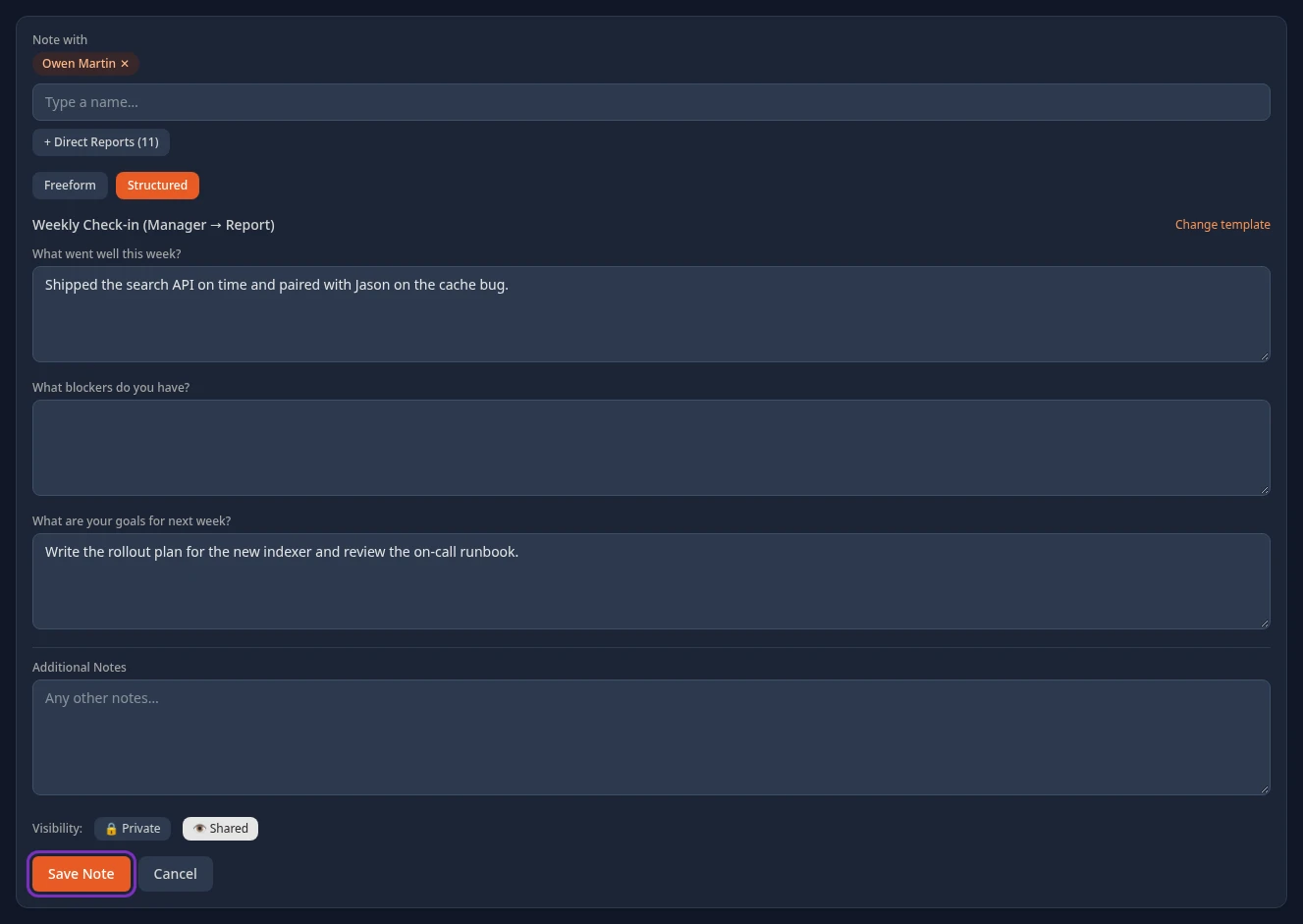
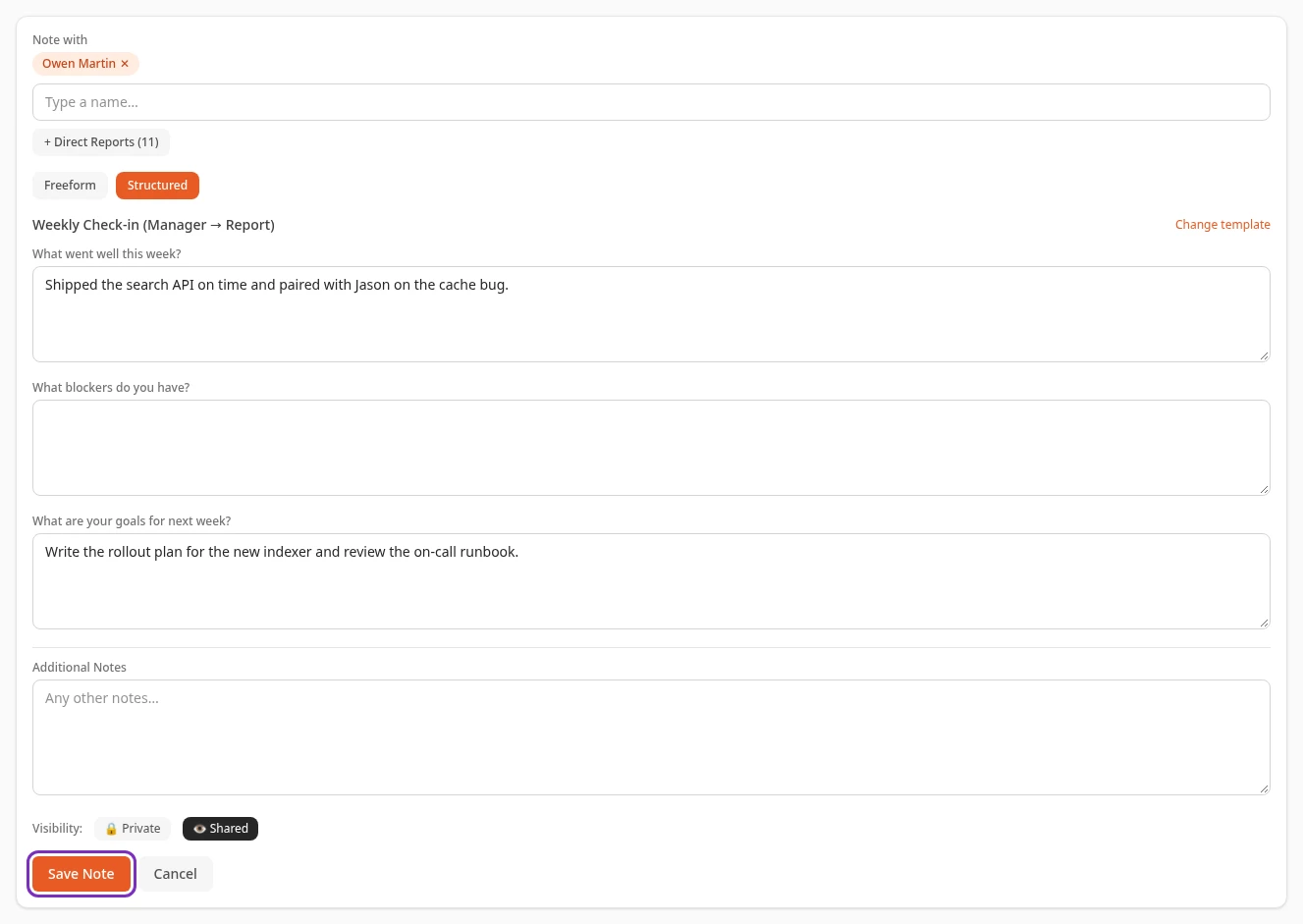
Open your report’s profile and select Notes. The note form opens with their name under Note with.
You can also select Notes in the menu bar, then + New Note, and type their name in Note with.
-
To write the same note for everyone who reports to you, for example after a team meeting, select + Direct Reports. The number in brackets is how many direct reports you have. Each of them gets their own copy, which they can read if you share it.
-
Choose Freeform to write freely, or Structured and a template. As a manager you’re also offered the templates marked Manager → Report. See Templates for your 1:1s.
-
Write your note. In a structured note, at least one answer is required, and Additional Notes at the end takes anything else.
-
Under Visibility, choose 👁 Shared to let your report read the note, or keep 🔒 Private to keep it to yourself. Then select Save Note.
The note is listed on your Notes page under the person’s name, labeled By you. They aren’t notified. To change it later, open it and select Edit. See Change or delete a note.
Read what your reports write
Section titled “Read what your reports write”- Your reports can write notes with you too, for example their talking points before a 1:1. They’re listed under the report’s name, labeled By and their name.
- You only see the notes they shared with you, marked 👁 Shared with you. Notes they keep 🔒 Private aren’t listed for you.
- To list only the people who’ve written notes with you, select My Notes above the list to turn it off, so that only Others’ Notes is on. Your own manager is in that list too if they write notes about you.
- You can’t change or delete a note someone else wrote.
Templates for your 1:1s
Section titled “Templates for your 1:1s”- Structured lists Your Templates, the ones you made, and Company Templates, set up by your admin or HR team.
- Templates marked Manager → Report are only offered to managers, so your reports don’t see them when they write a note. Use them for the questions you ask in your 1:1s. Templates marked Report → Manager are for your reports’ side of the meeting.
- To make your own, select Templates, then + New Template, and choose Manager → Report as the Direction. See Make your own templates.
- When nobody reports to you any more, the Manager → Report templates, your own included, aren’t offered to you.
Can’t see this?
Section titled “Can’t see this?”- There’s no + Direct Reports button. Nobody reports to you on the org chart yet. The button only adds your direct reports, not the people who report to them.
- Structured has no Manager → Report templates. Your company hasn’t set any up. Make your own on the Templates tab.
- There’s no Notes link on profiles, or no Notes in your menu bar. Your company turned Notes off, or your roles don’t include it. Ask your admin.
Related
Section titled “Related”- Prepare for your 1:1s (the basics, and your reports’ side)
- View a team member’s profile
- See how your team is doing