Approve or reject requests in your Inbox
هذا المحتوى غير متوفر بلغتك بعد.
Some requests need a decision before they take effect. Each one goes through an approval flow, a series of approvals such as yours and then HR’s. When a step is yours, you get an Approval requested notification, and the request waits on the Approvals tab of your Inbox until you approve or reject it.
What comes to you
Section titled “What comes to you”With the standard approval flows, these requests can reach a manager:
| In your Inbox | When it comes to you | After you approve |
|---|---|---|
| Leave request from … | Someone who reports to you directly requests time off. | It’s approved. A request longer than 5 days goes to HR first. |
| Salary change request from … | Someone who reports to you directly, such as an HR Admin, requests a salary change for an employee. | It goes to HR, and the change is approved once HR signs off. |
| Termination request from … | Someone who reports to you directly, such as an HR Admin, marks an employee as having left the company. | It goes to HR for sign-off. |
| Offer request from … | A recruiter prepares an offer for a job you’re the hiring manager of. | It goes to HR for sign-off. |
- A salary change or a termination goes to the manager of the person who made the request, not to the employee’s manager. When HR requests a salary change for someone in your team, it goes to HR’s manager and then to HR: you aren’t asked.
- Time off from people who report to your managers goes to their own manager. You still see it on the Team Requests tab of Time Off. See Approve or reject time off.
- Your own requests never come to you. Your manager decides them.
- A new hire’s onboarding details go to HR for review, not to their manager.
- Your admin can change these flows in Settings › Approvals, so your company’s may differ.
Decide a request
Section titled “Decide a request”-
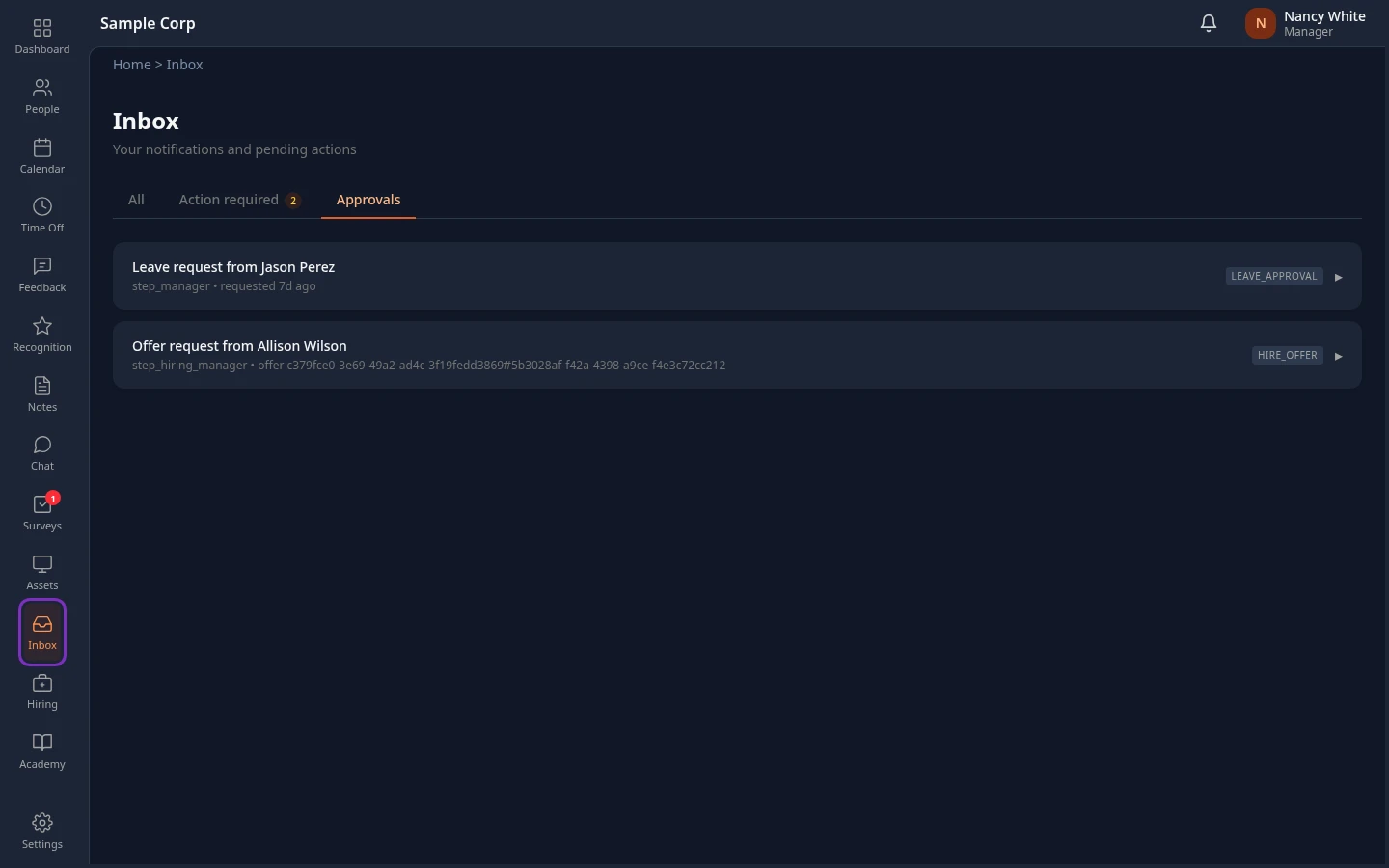
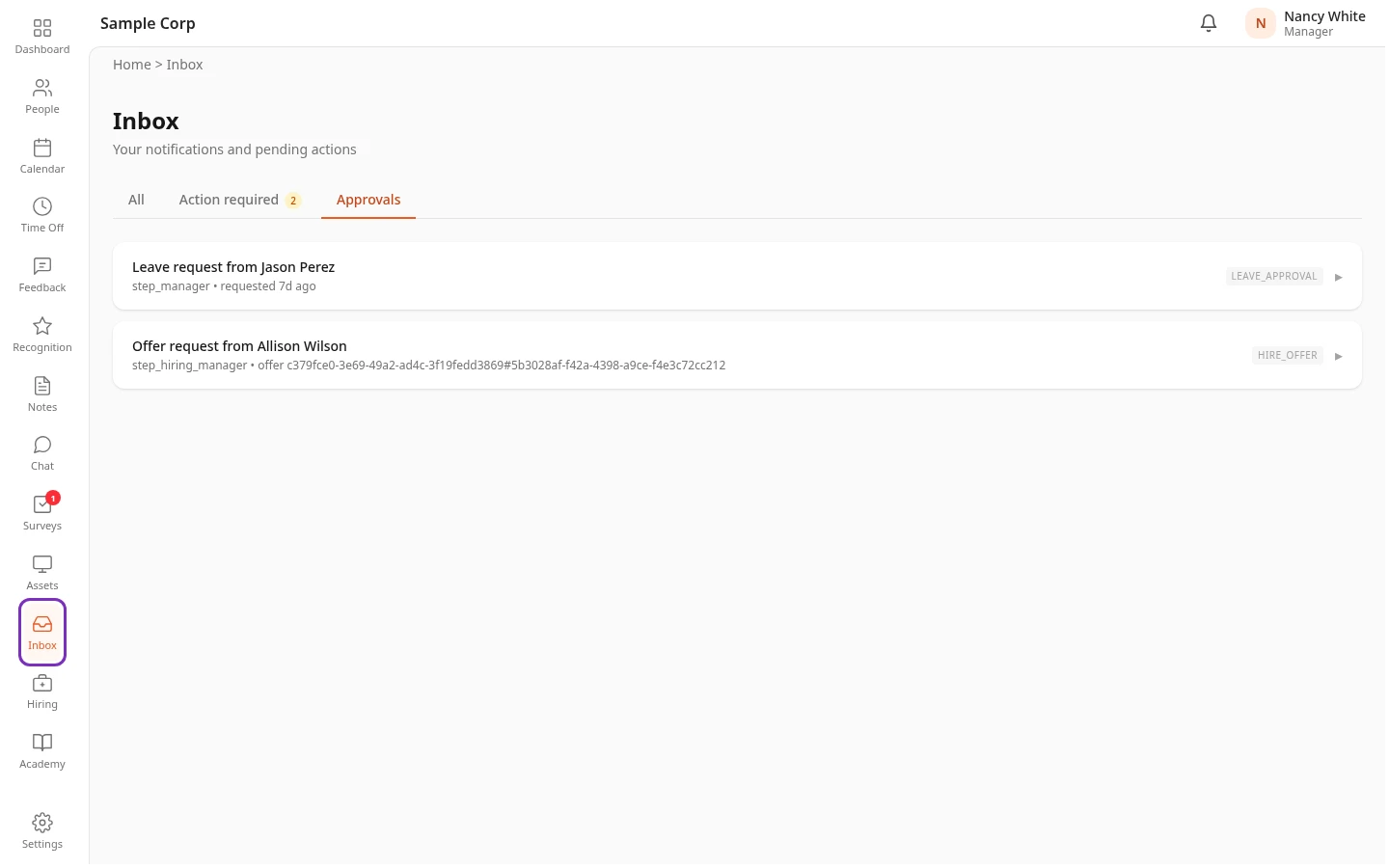
Select Inbox in the menu bar, then the Approvals tab. An Approval requested notification under the bell opens the same tab.
-
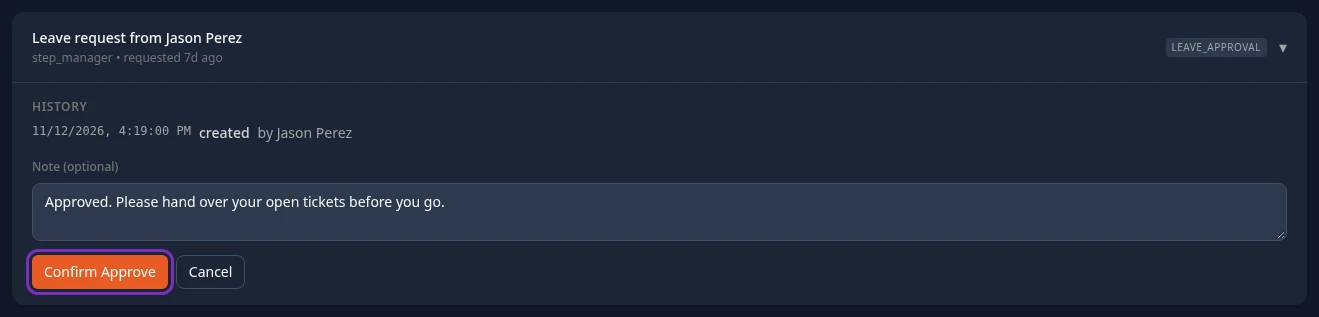
Select a request to open it. History shows what has happened so far, oldest first: when the request was created and by whom, then any earlier approval with the approver’s note.
-
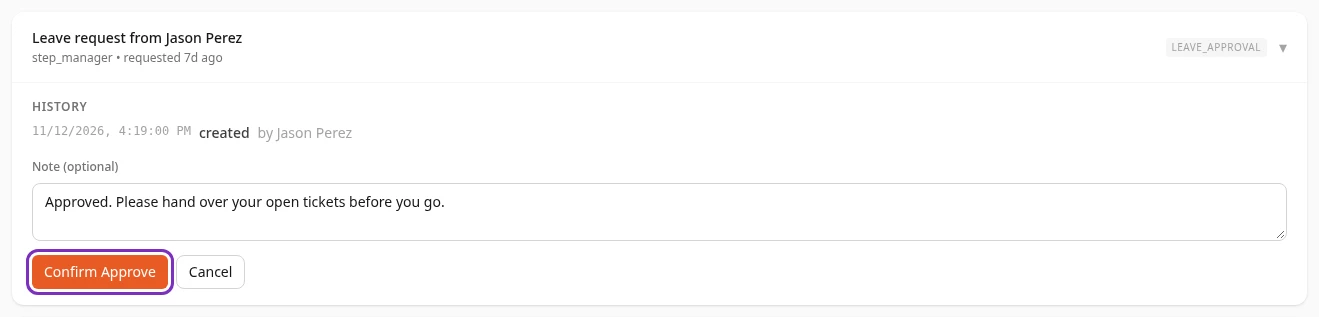
To approve, select Approve, add a note under Note (optional) if you want, then select Confirm Approve.
-
To turn it down, select Reject, enter the reason under Reason (required), then select Confirm Reject. You can’t confirm without a reason.
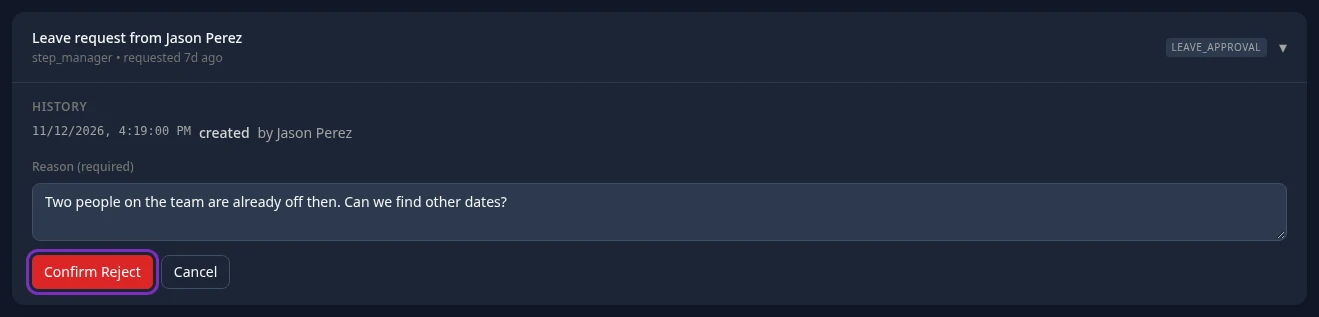
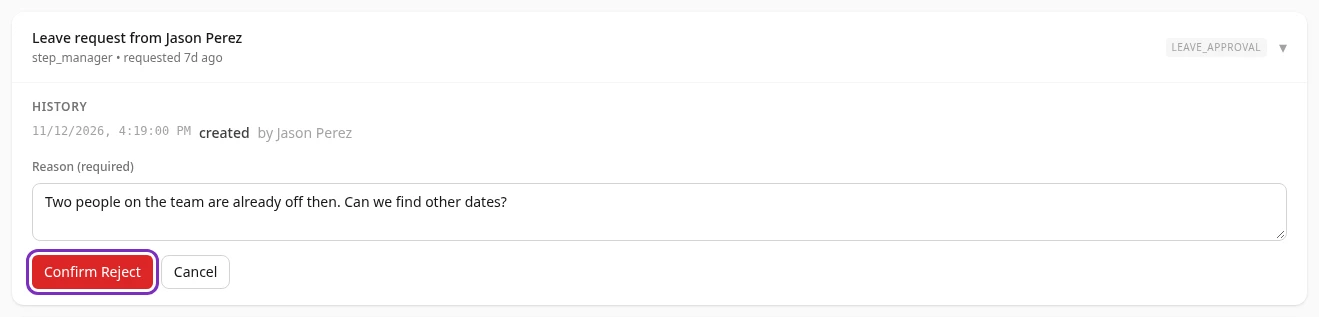
Approved or Rejected appears, and the request leaves your list. Cancel closes the note or reason box without deciding.
You can’t approve a request about yourself, such as a salary change for you: You can’t approve your own request appears. You can still reject it.
Read a request
Section titled “Read a request”The Inbox shows some of the approval flows’ internal names:
- The tag on the right is the kind of request: LEAVE_APPROVAL, SALARY_CHANGE, TERMINATION or HIRE_OFFER.
- The line under the title starts with the step that’s waiting for you: step_manager for the manager step, step_hiring_manager for the hiring manager step. For time off, the line then says how long ago the request was made. For the other kinds, it ends with the kind of request and an internal number.
What happens next
Section titled “What happens next”When you approve, the request moves on to its next step, if it has one, and the people on that step get an Approval requested notification. They see your note in the request’s History. When you reject, the request ends there.
| Request | After the last approval | After a rejection |
|---|---|---|
| Time off | Approved. The employee gets Request approved. | Rejected. The employee gets Request rejected. |
| Salary change | Marked approved. The person who requested it gets Request approved. | Marked rejected. The person who requested it gets Request rejected. |
| Termination | The employee stays suspended. Nobody is notified. | The employee stays suspended. The person who made the request gets Request rejected. |
| Offer | The recruiter gets Request approved. | The recruiter gets Request rejected. |
The notifications don’t include your note or your reason, and the person who made the request can’t see its History. If they need to know why, tell them yourself. The employee a salary change is for isn’t notified at all.
Expense reports aren’t here
Section titled “Expense reports aren’t here”Expense reports don’t go through approval flows, so they never appear in your Inbox, and you aren’t notified when someone in your team submits one. The app doesn’t have a page in the menu bar yet where managers approve expense reports. Ask your finance team how your team’s reports get approved.
Can’t see this?
Section titled “Can’t see this?”- There’s no Approvals tab in your Inbox. Your roles don’t include approvals. Everyone with people reporting to them gets the tab; otherwise, ask your admin.
- The tab says All caught up. Nothing is waiting for you right now.
- A request you expected isn’t there. It was sent to someone else, someone has already decided it, or, for time off, the employee cancelled it. Time off from people further down your org goes to their own manager, and a salary change goes to the manager of the person who requested it.
Related
Section titled “Related”- Approve or reject time off
- Manager quick start
- Find your way around: the Inbox
- Submit an expense report (what your team sees)