Find company documents
Employee
هذا المحتوى غير متوفر بلغتك بعد.
Documents in the menu bar opens Company documents: the files HR shares with everyone in your company, such as the employee handbook or your policies.
Open company documents
Section titled “Open company documents”Select Documents in the menu bar. The page lists every file shared with All employees, newest first.
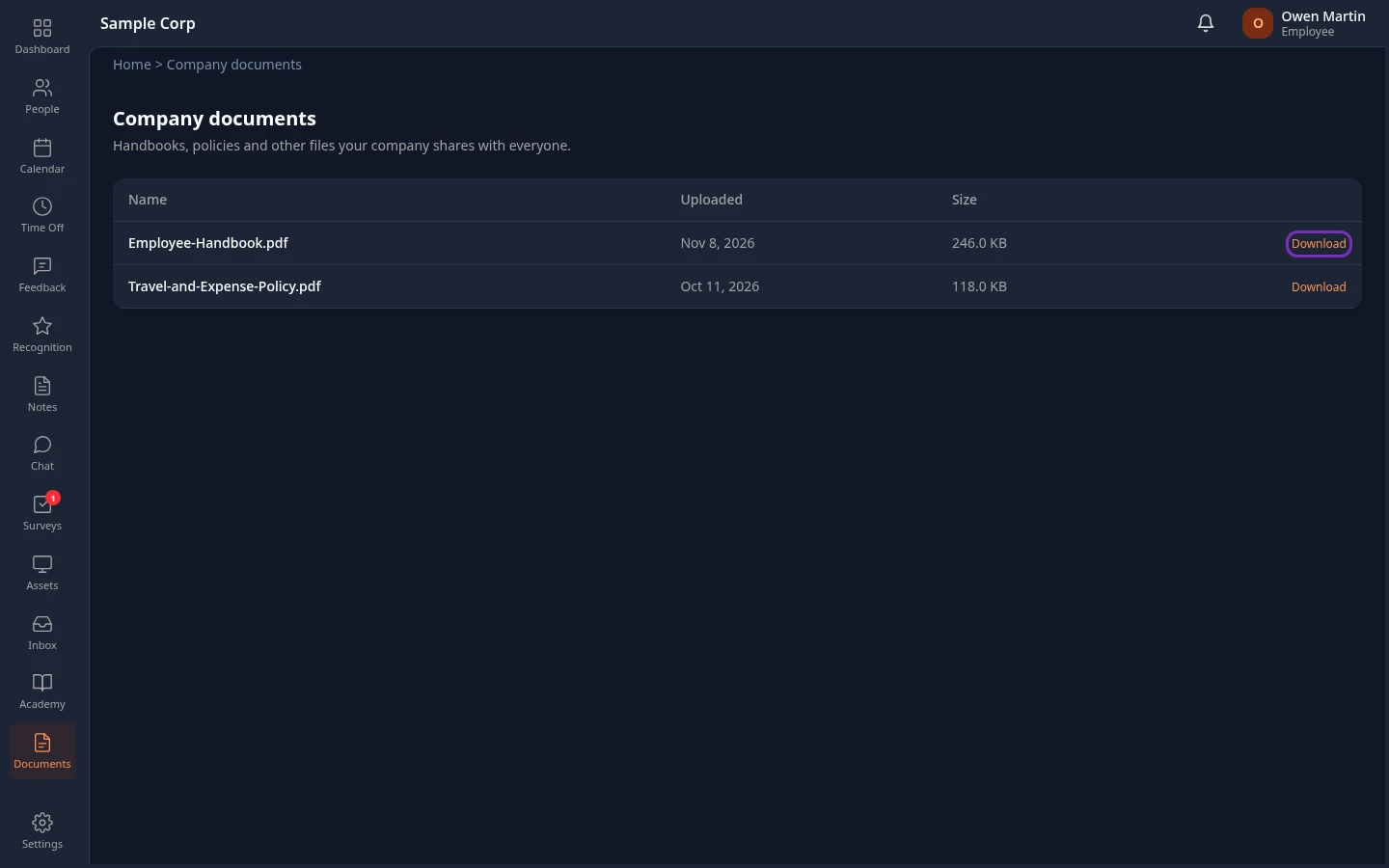
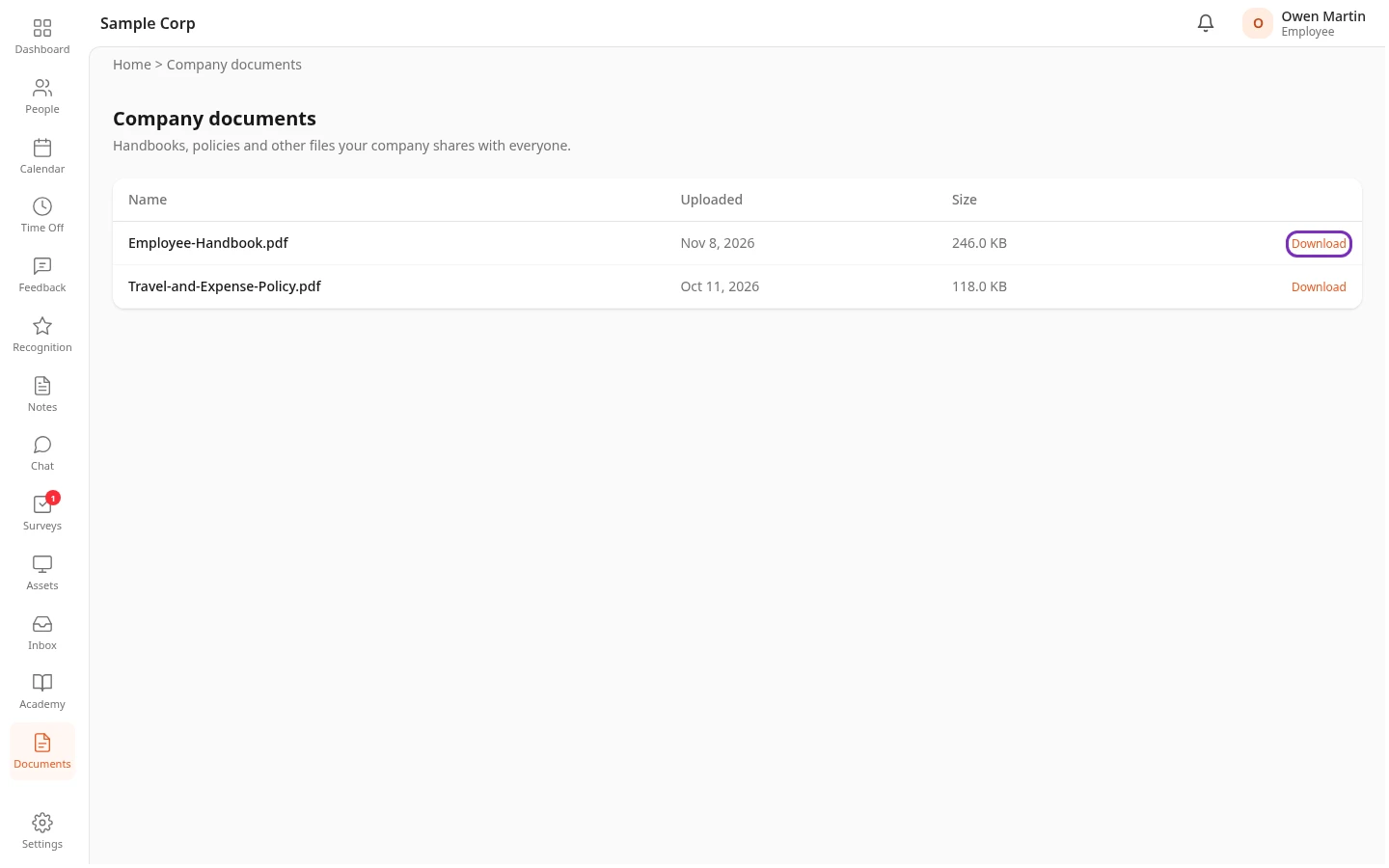
The list shows each file’s Name, the date it was Uploaded and its Size.
- Select Download to save a copy of a file. The link behind it works for 30 minutes, so download the file again rather than sharing the link.
- The page shows 50 files at a time. Select Load more at the bottom to see older ones.
- No company documents yet means HR hasn’t shared any file with all employees.
You can only read and download files here. HR uploads, replaces and removes them in Settings (see Share company documents), and you aren’t told when a new file is added.
Can’t see this?
Section titled “Can’t see this?”- There’s no Documents item in the menu bar. Your role doesn’t include the permission View company under Documents. Every built-in role has it, so a custom role or a change to your company’s roles removed it. Opening the page then says You can’t see company documents. Ask your admin.
- You or your admin hid the item. Turn it back on under Menu bar in your settings: see Choose what’s in your menu bar. If your admin hid it for everyone, the page still opens at its address,
/company-documents. - A file HR told you about isn’t in the list. It’s shared as HR only, or it was deleted. Ask HR to share it with all employees.
Related
Section titled “Related”- Your documents, the files about you on your profile
- Share company documents, for HR and admins