Set up job titles, teams and areas
هذا المحتوى غير متوفر بلغتك بعد.
Settings › People has three lists that profiles choose from: Titles, Teams and Areas / Departments. HR picks from them when editing someone’s Work Information. A new workspace starts with all three lists empty; the sample data fills them in.
To open them, select Settings in the menu bar (Admins turn on admin mode first: select your name at the top right, then Elevate to Admin), open People, then the Titles, Teams or Areas / Departments tab.
Titles, teams and areas are Work fields: everyone in the company can see them on profiles.
Job titles
Section titled “Job titles”The Titles tab lists every title with the number of people who hold it. Changes on this tab are saved straight away, and Titles updated appears after each one.
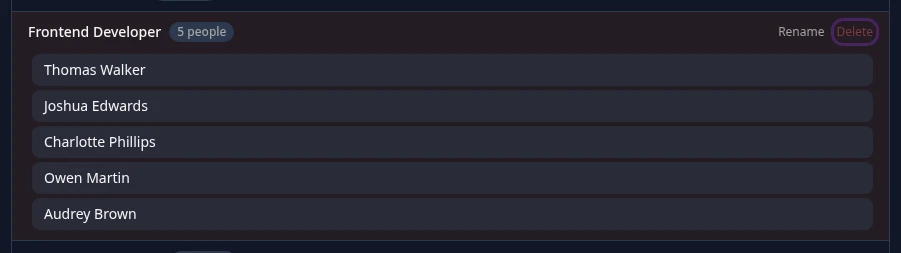
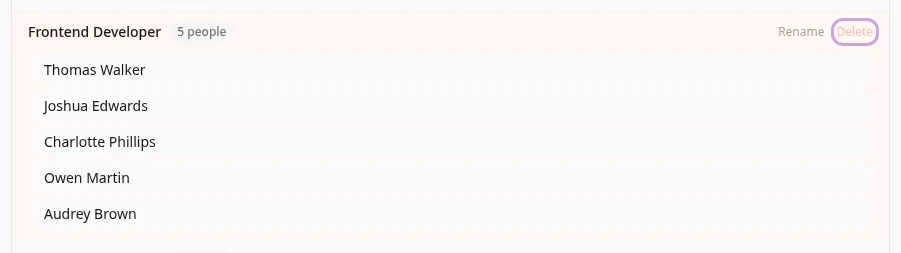
- Add a title: type it in New title… and select + Add Title. Titles can be up to 80 characters, and each title can only be in the list once.
- See who holds a title: select the title. The people who hold it are listed below it; select a name to open their profile.
- Delete a title: select Delete, then confirm. You can only delete a title nobody holds: while people hold it, Delete is greyed out. Give those people another title on their profiles first.
- Rename a title: select Rename and type the new name. This only works for a title nobody holds. For a title people hold, the change is refused with Title still assigned to users: and the title. To rename it, add the new title, move each person to it, then delete the old one.
Where titles are used
Section titled “Where titles are used”- Edit Profile on someone’s profile: the Title row of Work Information is a list of your titles. If the person’s title isn’t in the list, it shows with (not in list) after it.
- + Add Employee on the People page has a free text Title box, not your list, so check the spelling there.
The Teams tab is a list of team names. Type a name in the top box and select Add team. Change a name in its box, change the order with ↑ and ↓, and remove a team with ✕. Then select Save changes at the bottom of the page.
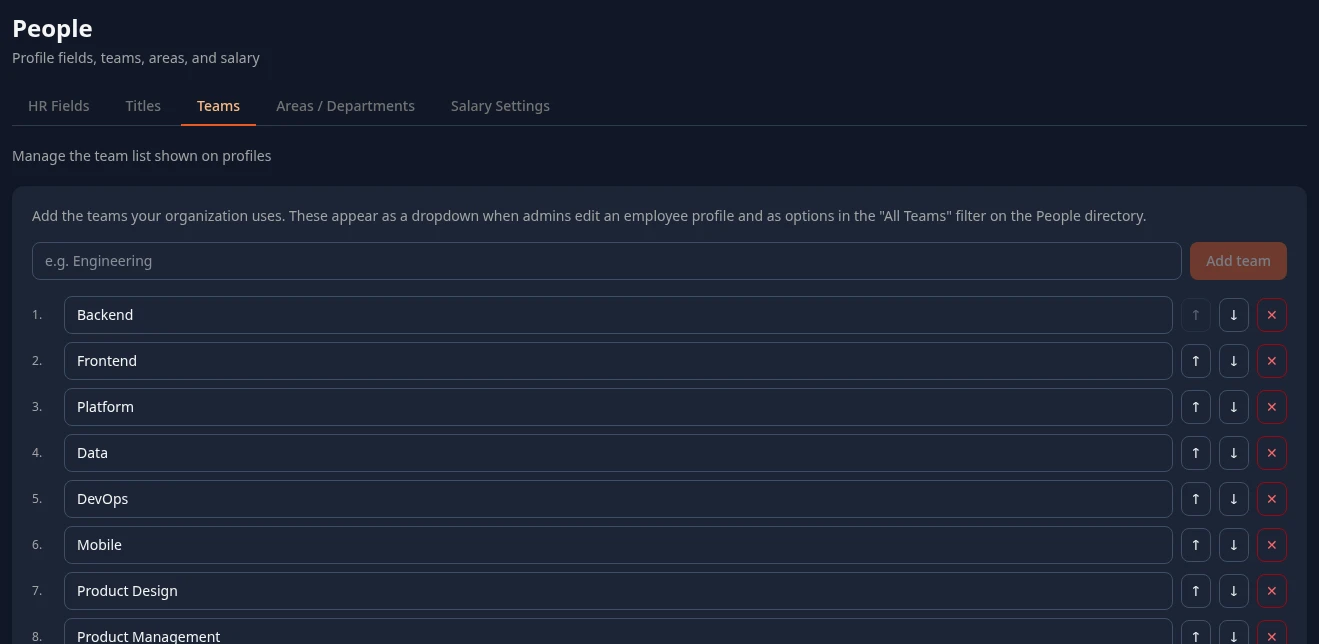
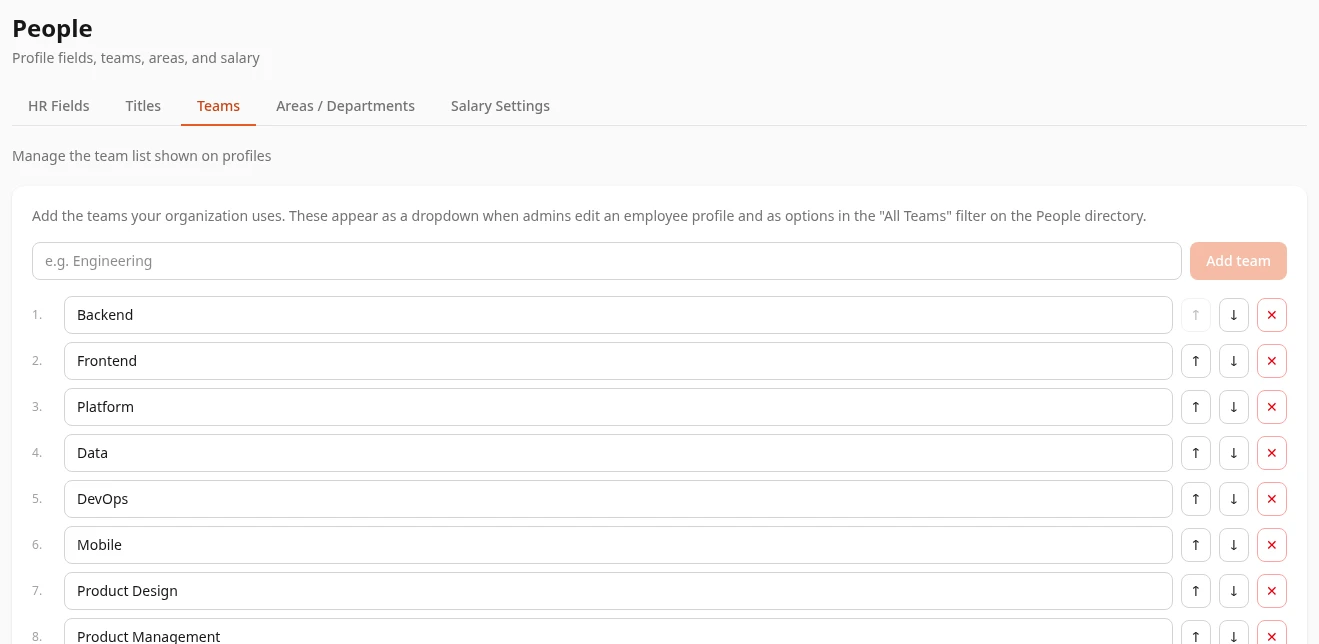
Names can be up to 50 characters, and each name can only be in the list once, whatever its capitals. The list is used in these places:
- The Team row of Work Information, when HR edits a profile.
- The Team list in + Add Employee on the People page.
- The Teams filter on the People page.
- The Calendar: a team event shows to the people whose team has the event’s team name.
- Academy, when you assign a course to a team.
There’s no switch to hide teams.
Areas / Departments
Section titled “Areas / Departments”The Areas / Departments tab works like Teams: add an area with Add area, rename it in its box, change the order with ↑ and ↓, remove it with ✕, then select Save changes. Names can be up to 50 characters.
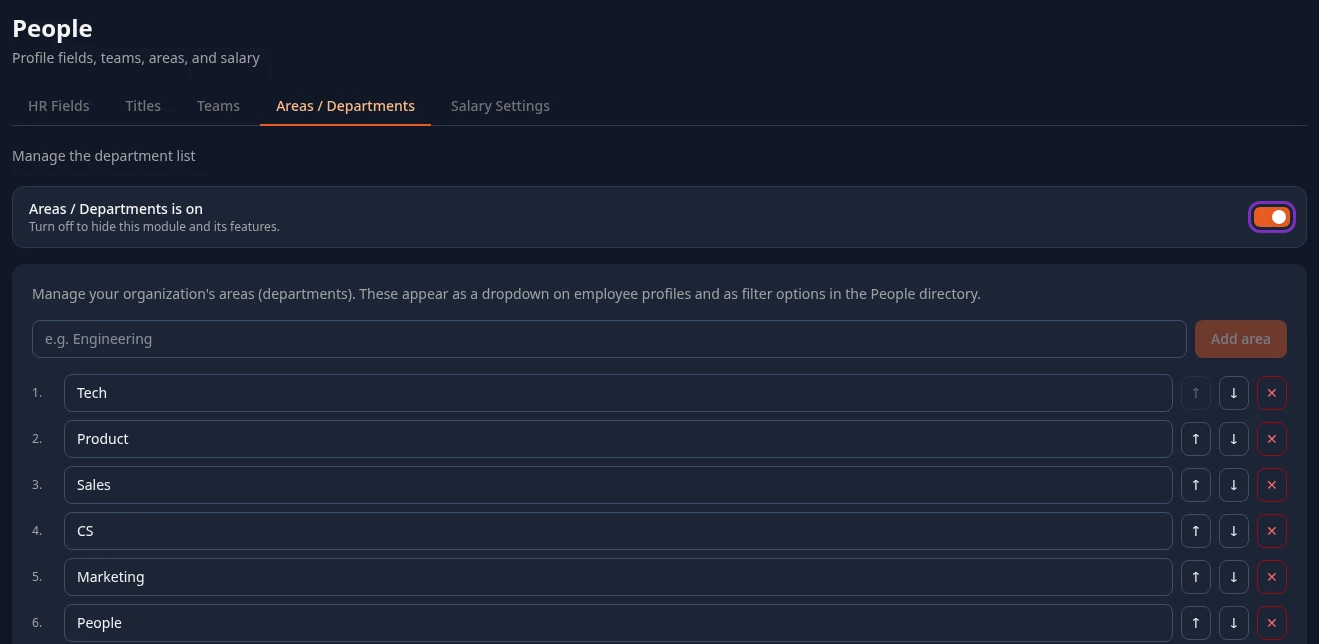
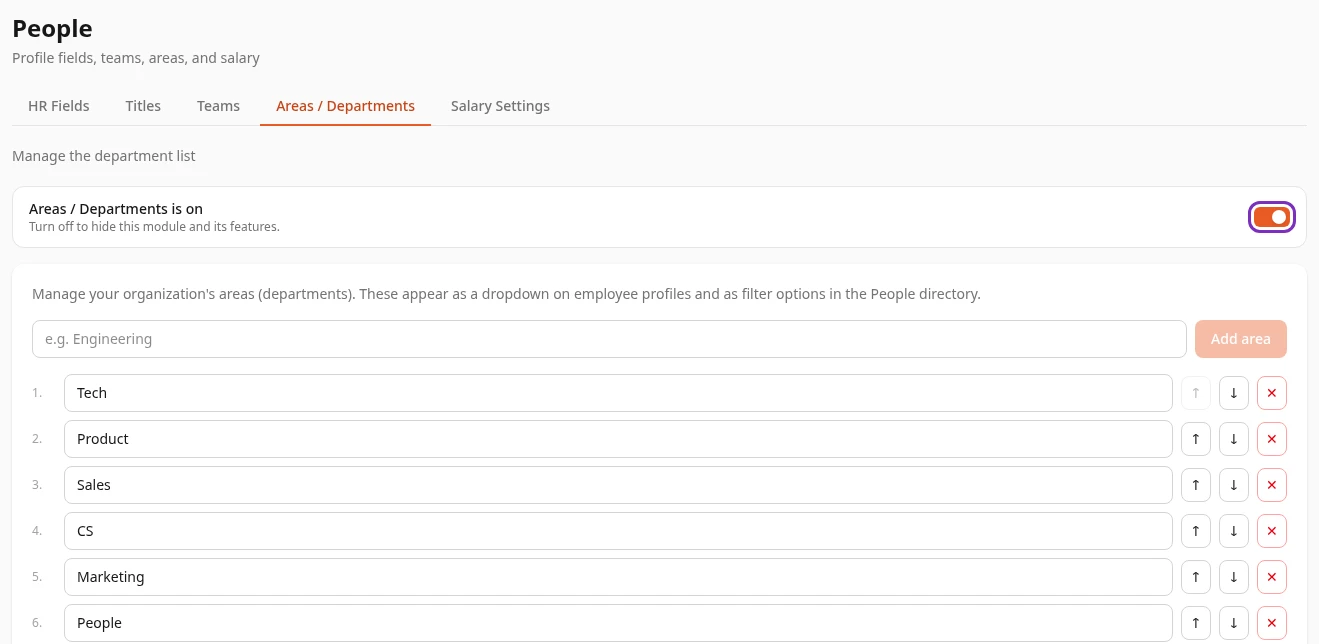
The list is used in the Area row of Work Information when HR edits a profile, the Areas filter on the People page, and Academy when you assign a course to an area. It isn’t in + Add Employee: set the area on the profile afterwards.
The switch at the top, Areas / Departments is on, hides the Area row on profiles and the Areas filter when you turn it off. People keep their area and your list is kept. See Areas / Departments.
What happens when you rename or remove a team or area
Section titled “What happens when you rename or remove a team or area”People’s profiles store the team or area name itself, so changes to the list don’t reach them:
- People keep the old name. Their profile still shows it, and Edit Profile shows it with (not in list) after it until someone picks a new one.
- The Teams and Areas filters on the People page no longer offer the old name, so you can’t filter on it.
- Team events on the Calendar keep the old team name, so people you move to the renamed team stop seeing them.
So after you rename or remove a team or area, open the profiles of the people in it and choose the new one. Profile changes to Team and Area save normally.
Reset to defaults, at the bottom of the Teams and Areas / Departments tabs, empties the list in the form. Nothing changes until you save.
Can’t see this?
Section titled “Can’t see this?”- No People card in Settings. The People module is off, or you’re an Admin and admin mode is off. See Turn modules on and off.
- The Area row or filter is gone. Areas are turned off: open Areas / Departments and select Enable Areas / Departments.