Employee quick start
هذا المحتوى غير متوفر بلغتك بعد.
These seven steps cover what most people do in their first days with Anima HR. Each one takes a few minutes. Your company may not use every module, so skip any step whose menu item you don’t have.
-
Sign in. Use the Set Your Password link in your invitation email to choose a password, then bookmark your workspace’s address. See Sign in.
-
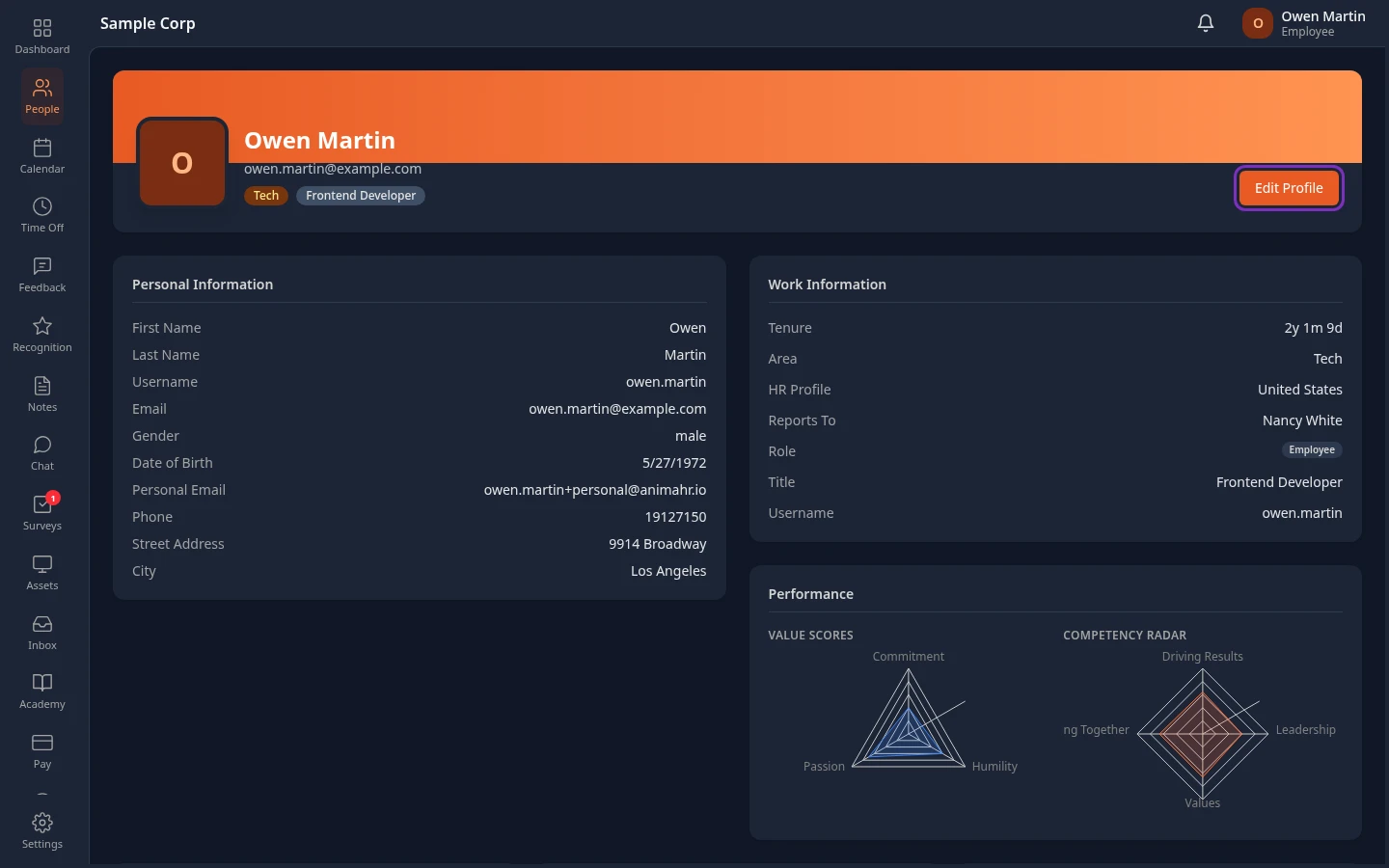
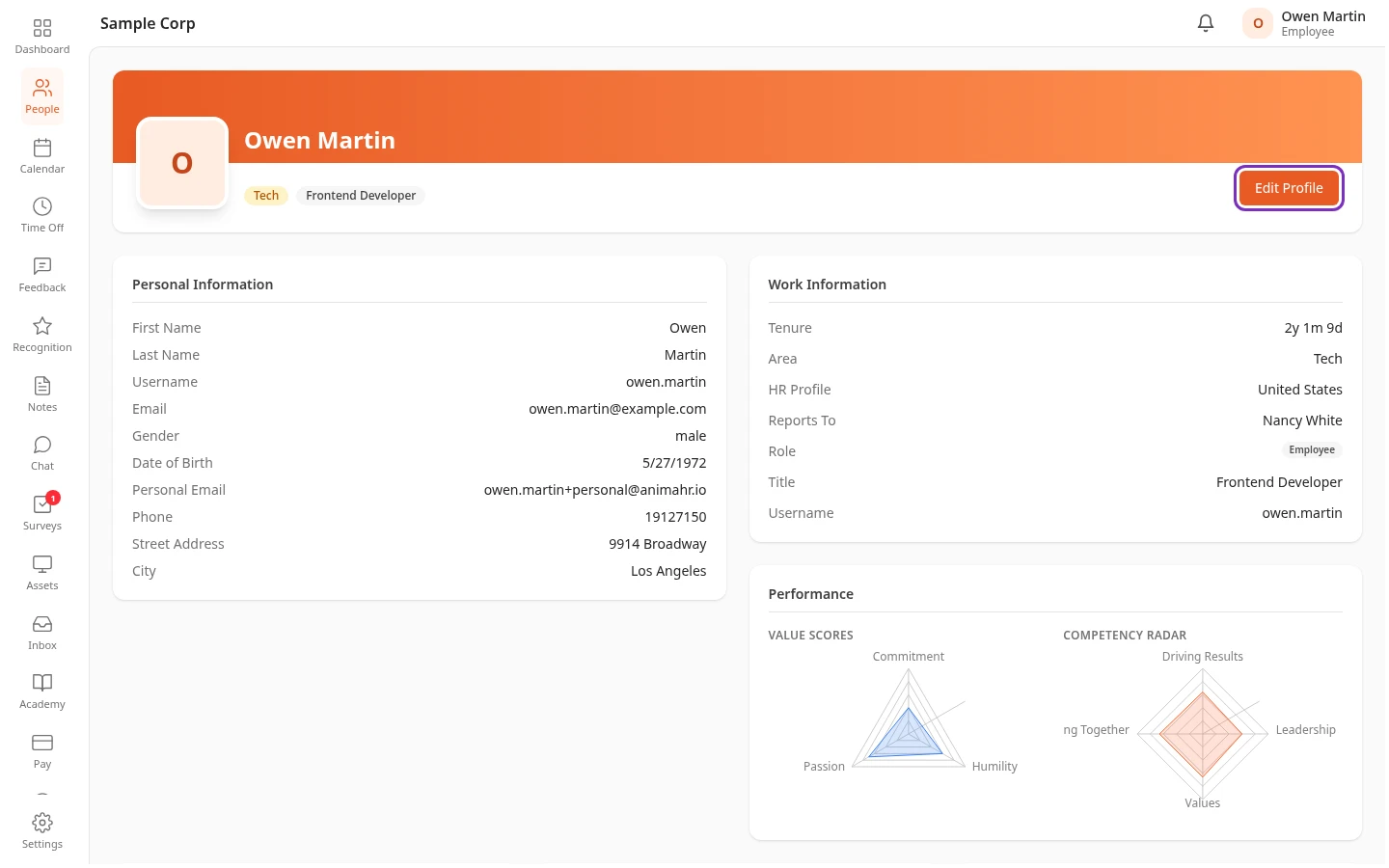
Check your profile. Select your name in the top bar, then View Profile. Your profile shows your work details, such as your title and who you report to, and your personal details. To update your personal details, such as your phone number or personal email, select Edit Profile, make your changes and select Save. Only HR or an admin can change your title, team and manager.
-
See how much time off you have. Select Time Off in the menu bar. The cards at the top show what’s left of each leave type, such as Vacation. See Check your time-off balance.
-
Request time off. On the New Request tab, choose a Leave Type, a Start Date and an End Date, enter a Reason and select Submit Request. Your manager gets a notification to approve it. See Request time off.
-
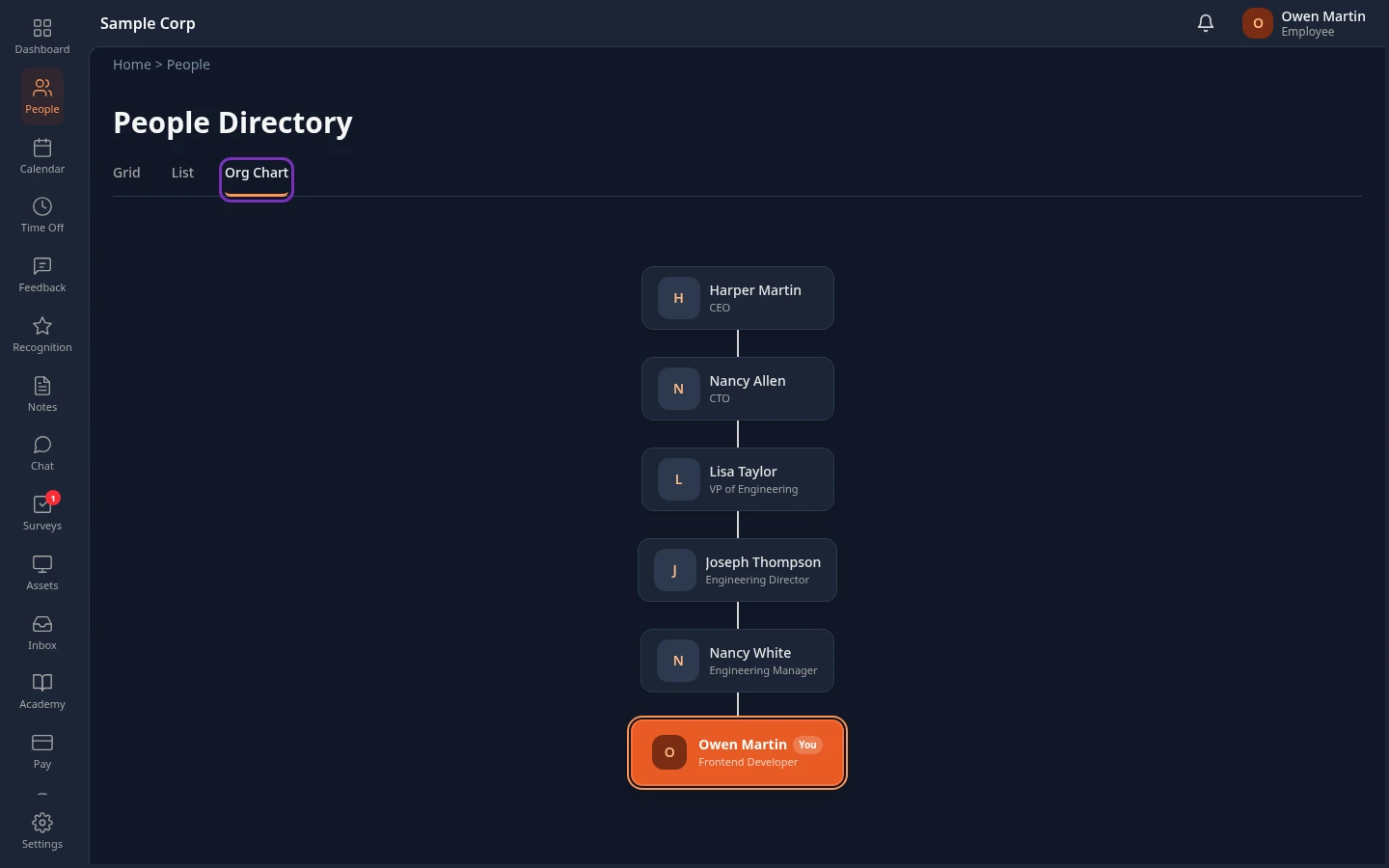
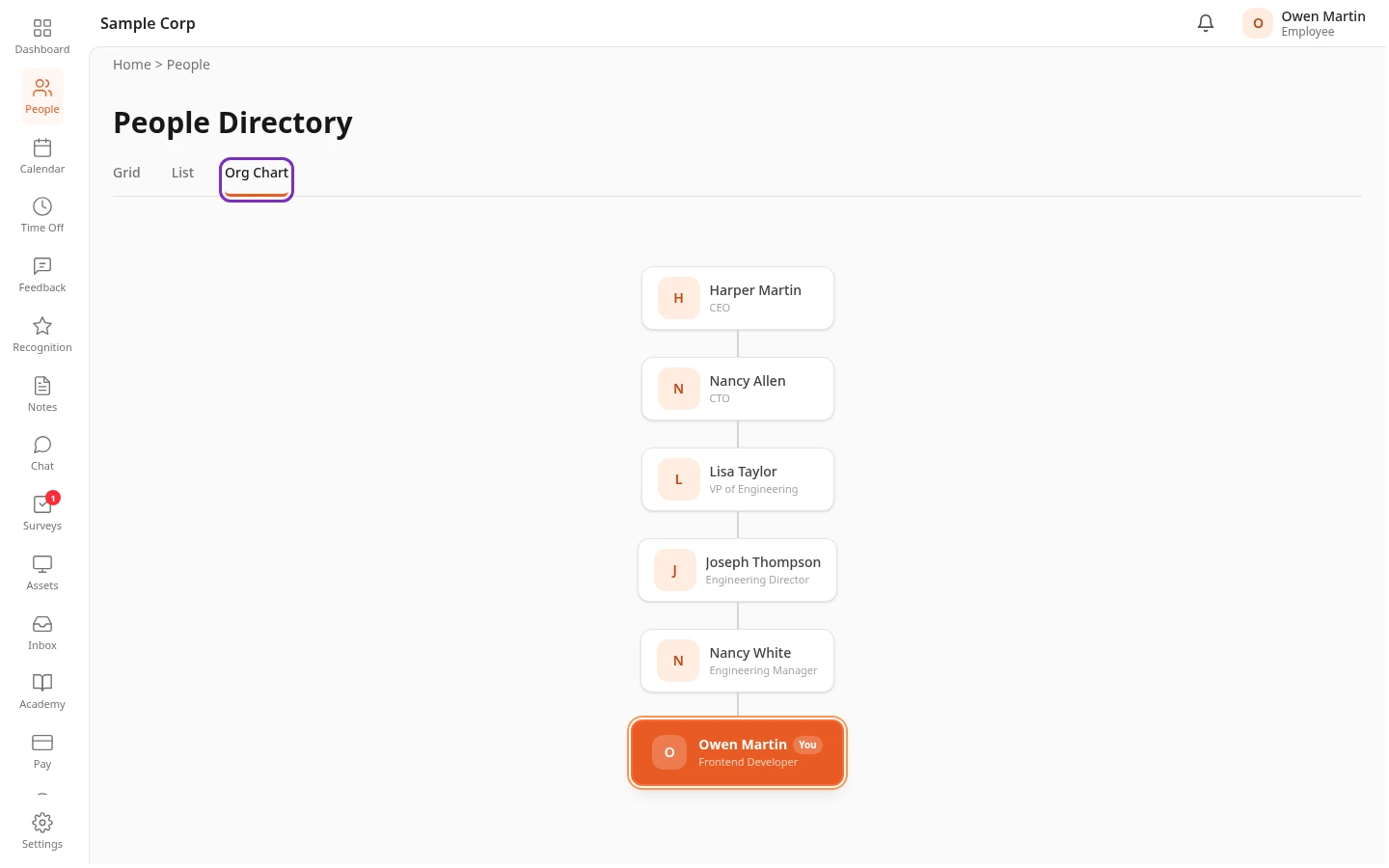
Find your colleagues. Select People to open the People Directory. Type part of a name or email address in Search, or narrow the list with Teams. Select a person to open their profile.
The Org Chart tab starts with you, marked You, under the managers above you. Select someone in the chart to see their team, and select the highlighted card to open that person’s profile. ← Back to me brings you back to your place.
-
Check your notifications. A red number on the bell in the top bar counts your unread notifications, such as the decision on your time-off request. Select the bell to see the latest ones, or select Inbox in the menu bar to see all of them. The Action required tab lists what’s waiting for you. See The Inbox.
-
Know where everything else is. These items are in your menu bar when your company uses them:
- Pay: your payslips, expense reports and loans, on the Payroll, Reimbursements and Loans tabs. You only see the tabs your company uses.
- Feedback: your performance reviews, including the reviews you’ve been asked to write.
- Recognition: kudos for your colleagues.
- Academy: your courses, under Your Learning.
- Support: ask your company’s help desk for help with New Ticket, and follow your requests under My Tickets.
- Calendar: company holidays and events.
Can’t see something?
Section titled “Can’t see something?”Your menu bar depends on the modules your company uses and on your roles, so it can look different from a colleague’s. See Why your menu looks different from a colleague’s and Troubleshooting.