See the assets assigned to you
The My Assets page lists the company equipment assigned to you, such as your laptop, phone or monitor, with the details your company keeps about it. Your HR or IT team assigns assets and records returns. You can report a problem with an asset from its card.
See your assets
Section titled “See your assets”-
Select Assets in the menu bar.
My Assets opens, with the number of items assigned to you at the top right.
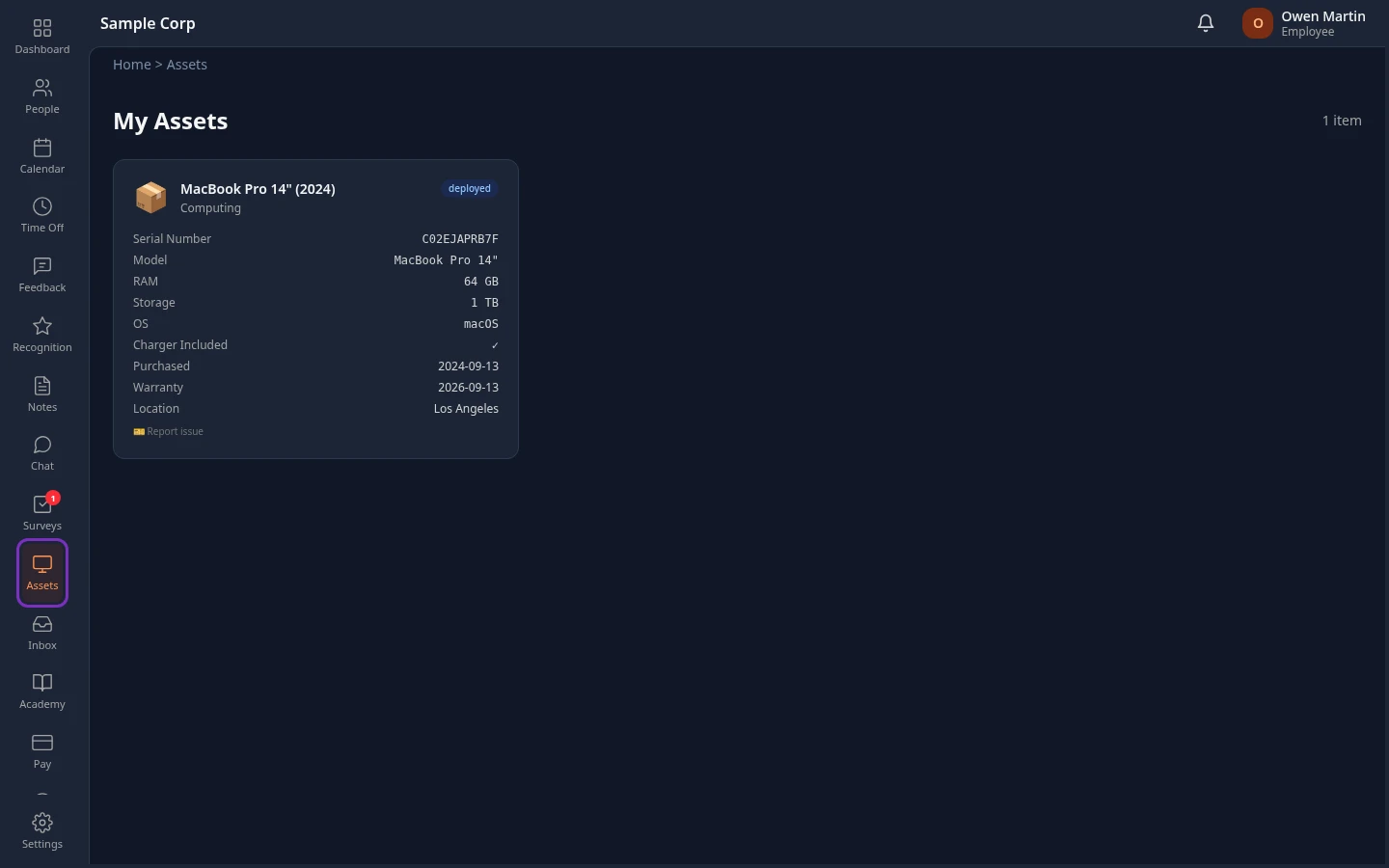
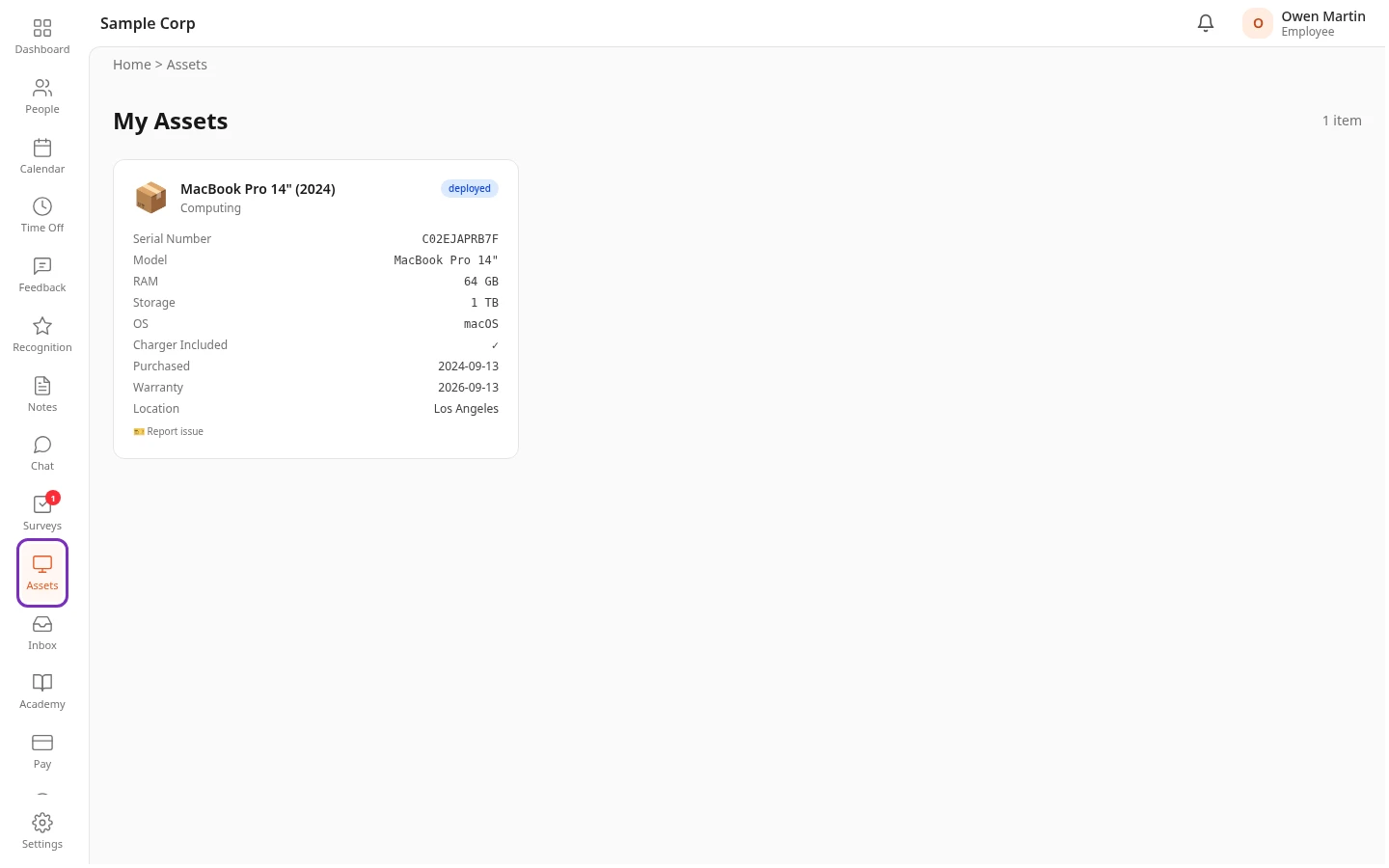
You can also open it from your profile: select your name in the top bar, then View Profile and My Assets.
What each card shows
Section titled “What each card shows”- The asset’s name, such as the laptop’s model, and its category.
- Its status: deployed while it’s assigned to you, or maintenance while it’s being repaired.
- The details your company records for that type of asset, such as Serial Number, Model, RAM and Storage for a laptop. Details your company hasn’t filled in aren’t shown.
- Purchased and Warranty: the date the asset was bought, and the date its warranty ends.
- Location: where the asset is kept, such as your office.
Report a problem with an asset
Section titled “Report a problem with an asset”Report issue opens a support request about the asset, with its details filled in.
-
On the asset’s card, select Report issue.
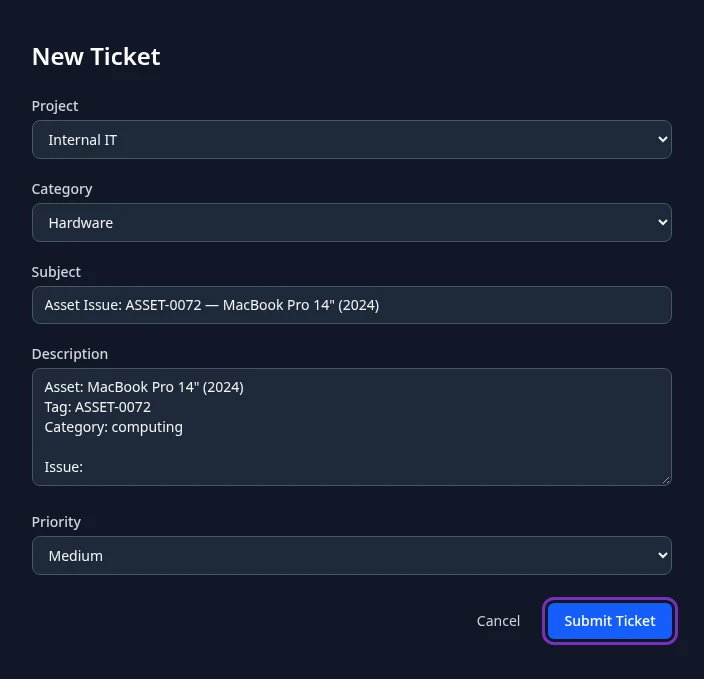
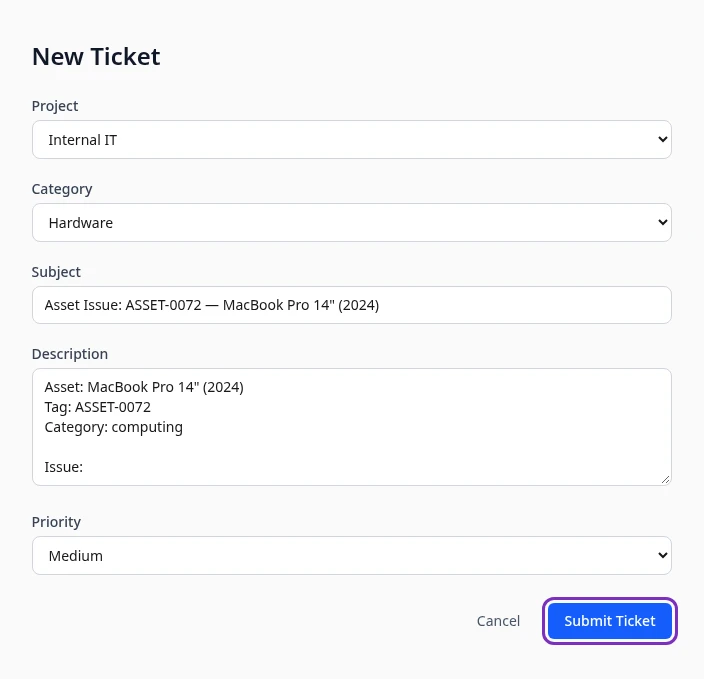
New Ticket opens. The Subject names the asset and its tag, such as ASSET-0042, and the Description lists the asset’s name, tag and category, followed by “Issue:”.
-
Choose the Project that handles equipment, such as your IT help desk, and a Category if the project has them.
-
After “Issue:”, describe the problem, and choose a Priority.
-
Select Submit Ticket.
Ticket created appears and your ticket opens. You follow it like any other support request: see Track your support requests.
Return an asset or ask for equipment
Section titled “Return an asset or ask for equipment”You can’t return an asset or request new equipment in Anima HR. Ask your HR or IT team, or file a support request. When they record the return, the asset disappears from My Assets.
Can’t see this?
Section titled “Can’t see this?”- There’s no Assets in your menu bar. Assets is turned off for your company, or your role doesn’t include assets. Ask your admin.
- The page says No assets assigned. Nothing is assigned to you in Anima HR. If you have company equipment that isn’t listed, ask your HR or IT team to assign it to you.
- You see the Asset Dashboard instead of My Assets. Your role lets you see every asset in the company, as HR Admins and Finance can. To see only yours, open My Assets from your profile.
- There’s no Report issue link. Your company doesn’t use the Support module, or your role doesn’t include it. Contact your IT or HR team directly.