Set up support ticket settings
Support settings apply to every help desk in your workspace. Today two of them change the app: the Priorities people pick when they file a request, and the help desks whose requests managers can see. The rest are saved for features that don’t read them yet.
Open support settings
Section titled “Open support settings”-
Select Settings in the menu bar. If you’re an Admin, turn on admin mode first: select your name at the top right, then Elevate to Admin.
-
Open the Support card. Its screen is Support Config.
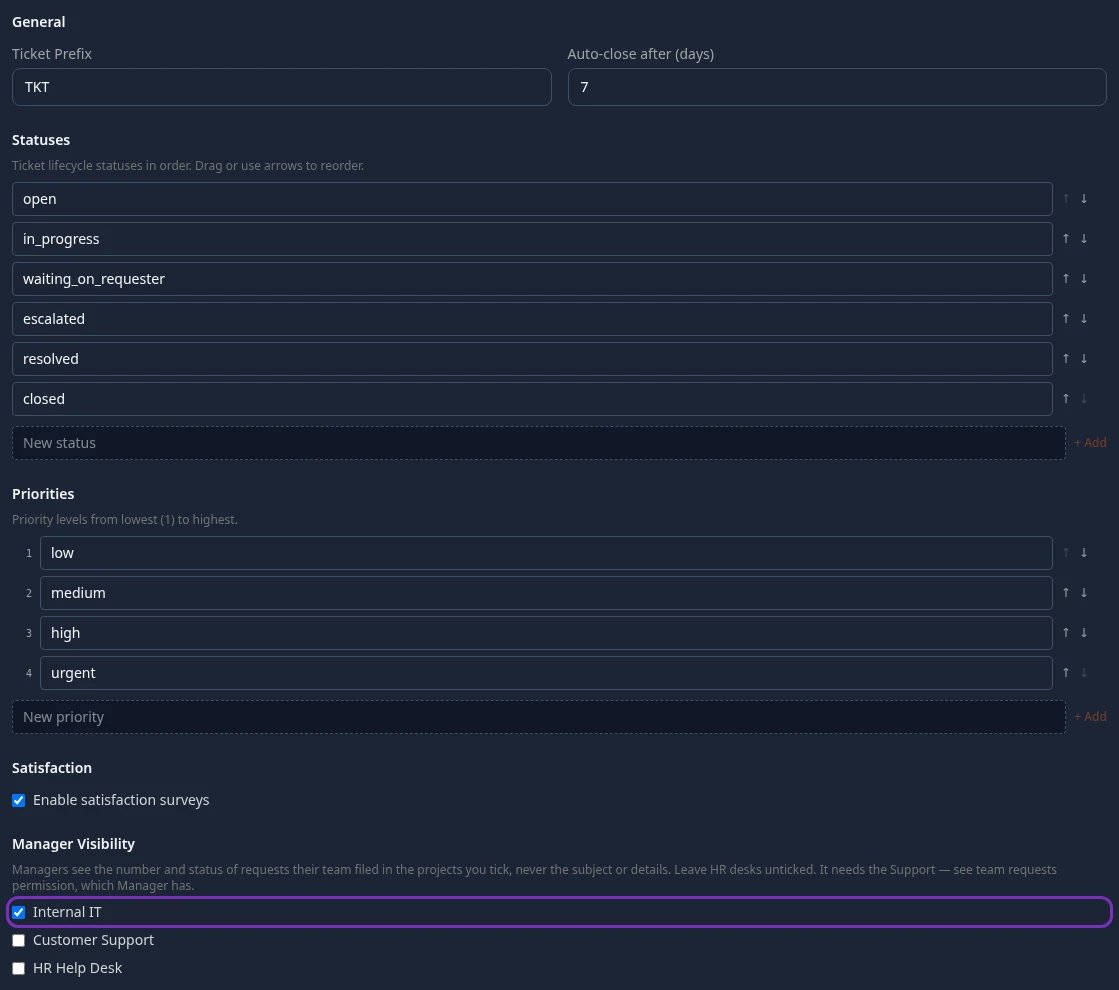
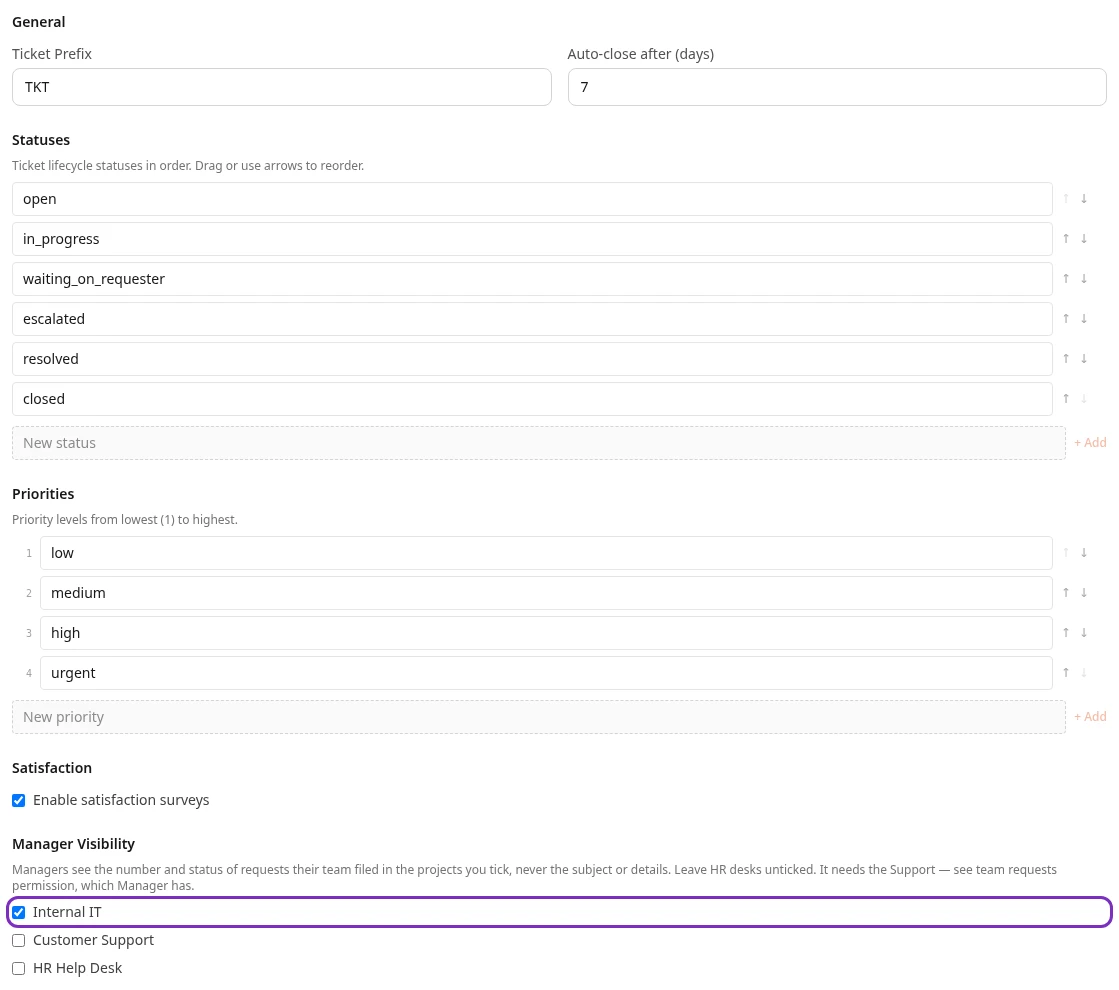
When you change anything, a bar with Unsaved changes appears at the bottom of the page. Select Save changes to apply them, or Discard.
Reset to defaults, at the bottom of the tab, asks you to confirm, then puts back the built-in Ticket Prefix, Auto-close after (days), Statuses, Priorities and Satisfaction settings. Your help desks, their canned responses and Manager Visibility stay as they are. Nothing changes until you select Save changes.
Priorities
Section titled “Priorities”The priorities people choose from when they file a support request, from lowest (1) to highest. A request with any other priority is refused. Type a new one under New priority and select + Add; use ↑ and ↓ to reorder, and ✕ (shown when you point at a row) to remove one. Requests already filed keep the priority they have.
Default: low, medium, high, urgent.
Manager visibility
Section titled “Manager visibility”Tick the help desks whose requests managers may see. In a ticked help desk, a manager can see the number, status, help desk, requester and dates of every request filed by anyone in their team (their direct reports and everyone below them). They never see the subject, the description, the answers or any custom fields. Help desks start unticked; the sample data ticks Internal IT only.
This needs the Support — see team requests permission, which the built-in Manager role has. Take it out of the Manager role on Settings › Access › Roles to turn this off for every help desk at once.
No screen shows managers these requests yet. The app’s API returns them to managers who ask, so ticking a help desk takes effect right away.
Settings with no effect yet
Section titled “Settings with no effect yet”| Setting | What it’s meant to do | Default |
|---|---|---|
| Ticket Prefix | The start of every ticket number. Numbers always start with TKT, counted per help desk (TKT-0001, TKT-0002, …). | TKT |
| Auto-close after (days) | Close resolved tickets after this many days. Nothing closes tickets automatically. | 7 |
| Statuses | The steps a ticket moves through. The app always uses its built-in statuses: open, in progress, waiting on requester, escalated, resolved and closed. | The built-in list |
| Enable satisfaction surveys | Ask the requester to rate the help they got. Nobody is asked for a rating. | On |
Help desks
Section titled “Help desks”Each help desk (a project, such as Internal IT, Customer Support or HR Help Desk in the sample data) has its own request categories, response time targets, email settings and public portal switch. None of these has a screen in Settings, and no screen creates a new help desk. Its members and their roles are managed on the help desk’s own settings page in Support.
Can’t see this?
Section titled “Can’t see this?”- There’s no Support card. The Support module is off: it’s in the Disabled group at the bottom of Settings. See Turn modules on and off.
- Saving fails with Access denied. Your roles don’t include Support — create and manage projects. Admin (in admin mode) and HR Admin have it.