Set up hiring roles, interview questions and the careers portal
Hiring settings hold what’s the same for every job: the interview roles people get on a job’s panel, the questions each role asks, and the candidate portal where applicants find your jobs and apply. Who works on a particular job is set on that job’s Panel tab, not here.
Open hiring settings
Section titled “Open hiring settings”-
Select Settings in the menu bar. If you’re an Admin, turn on admin mode first: select your name at the top right, then Elevate to Admin.
-
Open the Hiring card. Its screen is Hiring Config.
Each part of this screen saves on its own: a Save button appears under a part once you change it, with Cancel to undo. There’s no save bar.
The screen starts with Hiring access. Full access to every job and candidate comes from roles: HR Admin and Recruiter have it, and so does any role with both Manage jobs and Manage candidates in the Hiring permissions. Manage in Settings › Access › Roles opens the roles. See Create or change a custom role.
Interview roles
Section titled “Interview roles”Everyone on a job’s interview panel holds one interview role on that job. The role decides what they can do with that job’s candidates. Everyone on a panel can view the job’s candidates, whatever their role.
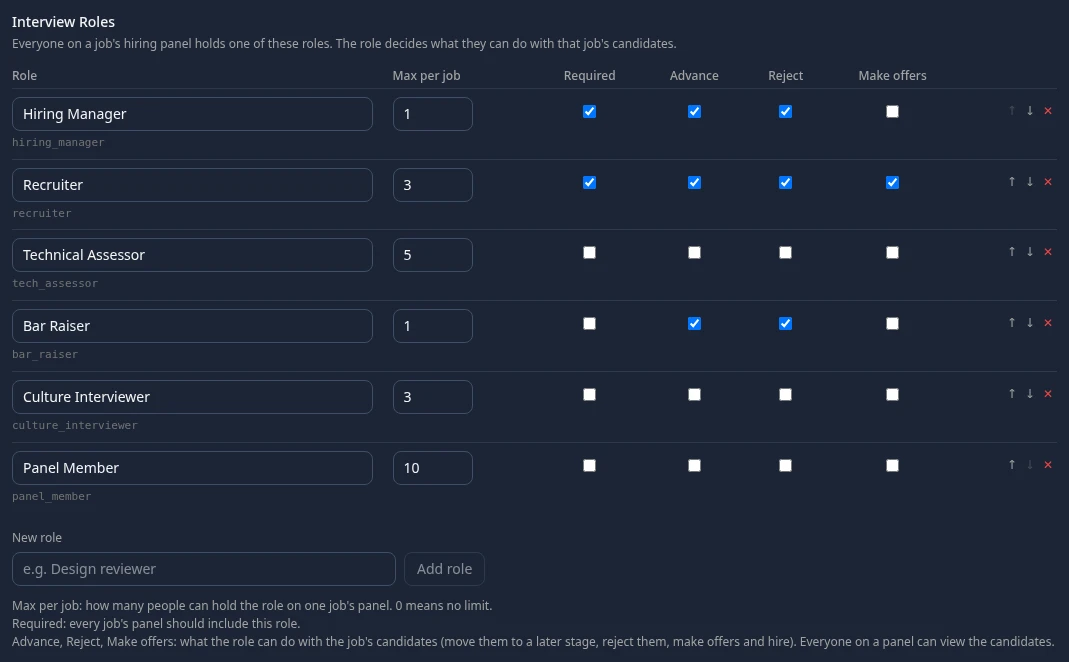
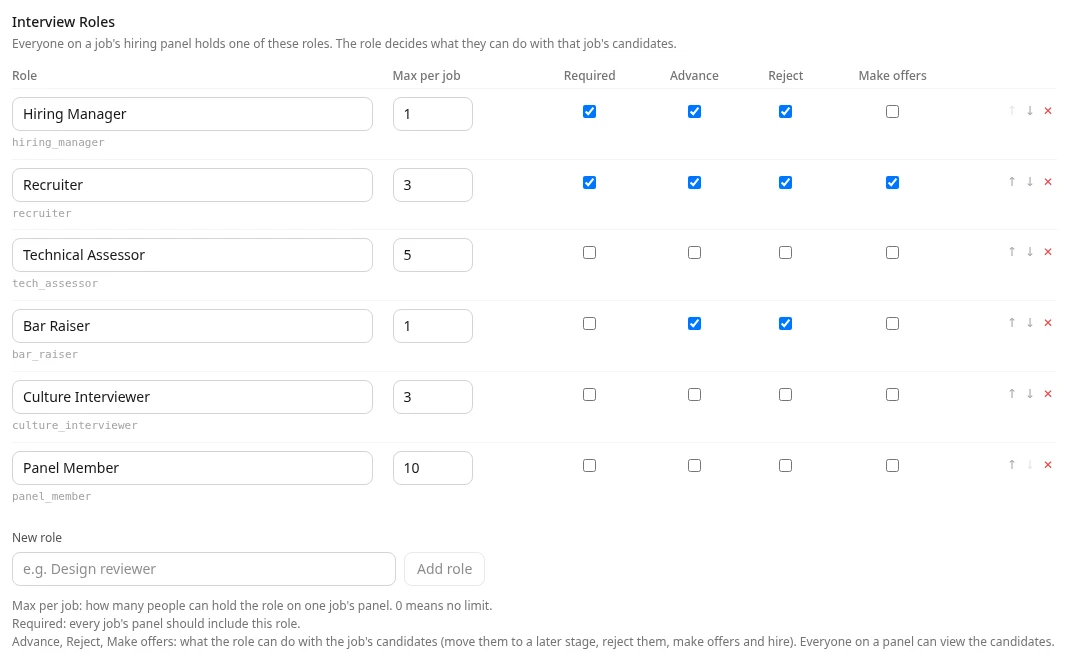
| Column | What it does |
|---|---|
| Role | The name people pick when they add someone to a job’s panel. The ID under the name is fixed once the role exists. |
| Max per job | How many people can hold the role on one job’s panel. Adding one more is refused. 0 means no limit. |
| Required | Marks a role every panel should include. It’s shown only: a job can still run without it. |
| Advance | Can move the job’s candidates to a later stage. |
| Reject | Can reject the job’s candidates. |
| Make offers | Can make offers and hire. |
Every workspace starts with these roles:
| Role | Max per job | Required | Advance | Reject | Make offers |
|---|---|---|---|---|---|
| Hiring Manager | 1 | Yes | Yes | Yes | No |
| Recruiter | 3 | Yes | Yes | Yes | Yes |
| Technical Assessor | 5 | No | No | No | No |
| Bar Raiser | 1 | No | Yes | Yes | No |
| Culture Interviewer | 3 | No | No | No | No |
| Panel Member | 10 | No | No | No | No |
To add a role, type its name under New role and select Add role; it starts with no limit and none of the three abilities. Use ↑ and ↓ to change the order, and ✕ to remove a role. You need to keep at least one.
People with full hiring access can do everything on every job, whatever interview role they hold.
Interview questions
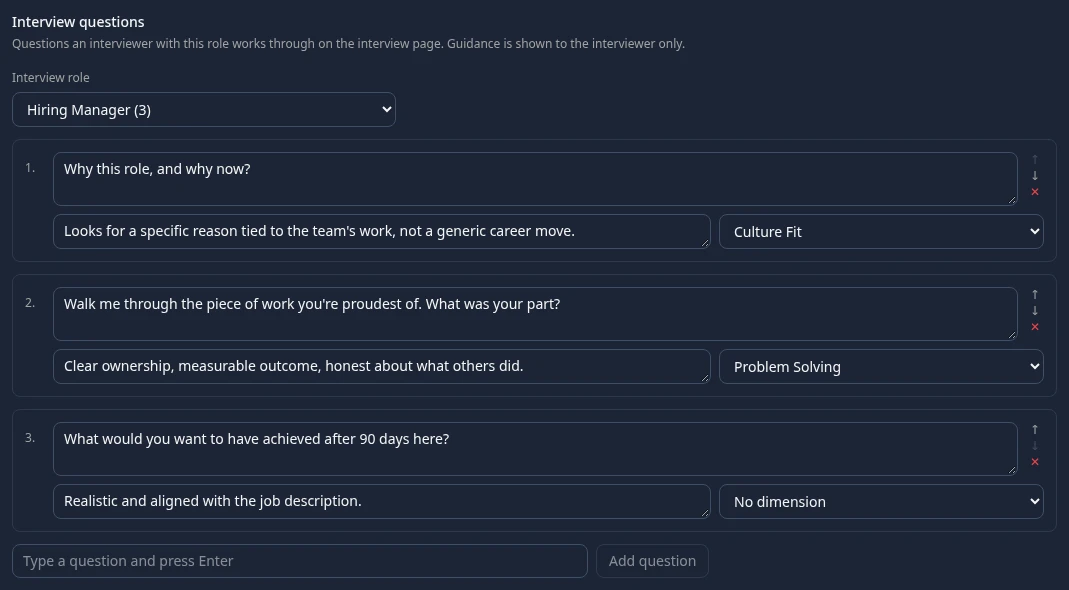
Section titled “Interview questions”Each interview role has its own questions. An interviewer with that role sees them on the interview page and works through them during the interview.
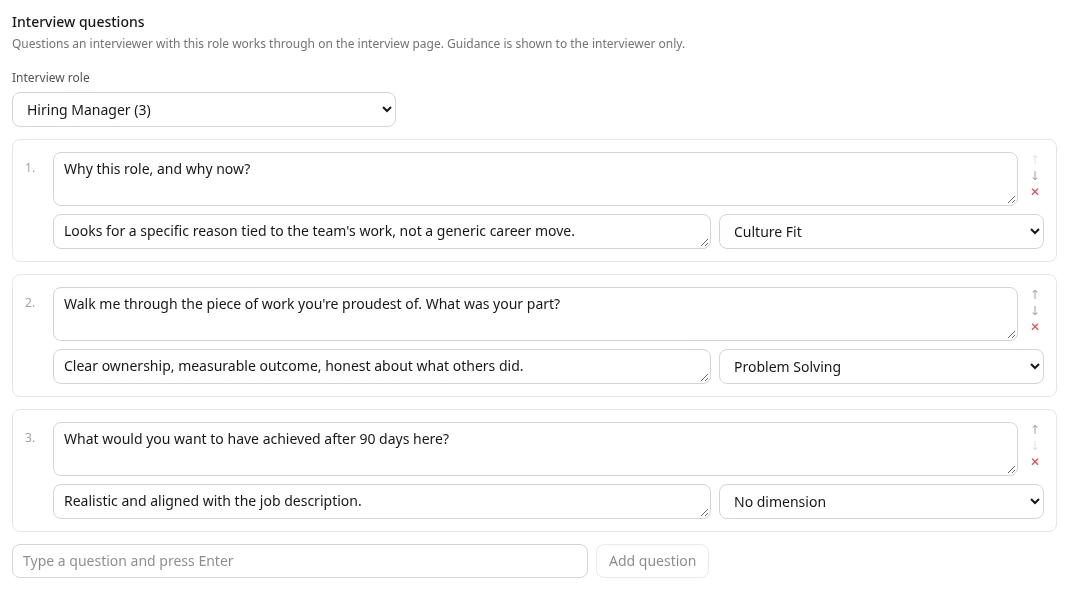
-
Under Interview role, choose the role. The number after each name is how many questions it has.
-
Type a question in Type a question and press Enter and select Add question.
-
For each question, add guidance if you like: what a good answer looks like. Only the interviewer sees it.
-
Choose the scorecard dimension the question informs, such as Problem Solving, or No dimension.
-
Select Save.
A role can have up to 30 questions. A question can be 500 characters long and its guidance 1,000. Save or cancel your changes before you choose another role.
Candidate portal
Section titled “Candidate portal”The candidate portal is your public careers page, at the Portal address shown on the screen (your workspace address followed by /portal). It’s off in a new workspace: until you turn on Enable candidate portal and save, visitors see no jobs and can’t apply.
| Setting | What it does | Default |
|---|---|---|
| Enable candidate portal | Opens the portal. The other settings only apply while it’s on. | Off |
| Public job listings (no login required) | Anyone can browse your open jobs. | On |
| Allow anonymous applications | Anyone can apply without making an account. | On |
| Anonymous status check via access token | Applicants get a private link to check where their application is. The link works for 90 days. | On |
| Allow candidate account creation | Applicants can make an account to apply and follow their applications. | Off |
With both job listings and accounts off, nobody can see your jobs in the portal; with both anonymous applications and accounts off, nobody can apply. The screen warns you when that’s the case.
Pipeline templates
Section titled “Pipeline templates”Pipeline Templates lists Standard Hiring. Edit opens the templates as raw text in a technical format, meant for support staff.
Settings without a screen
Section titled “Settings without a screen”These hiring settings exist but can’t be changed on this screen. Every workspace has the values below.
| Setting | What it does | Value |
|---|---|---|
| Pipeline stages | The stages every job’s candidates move through. | Applied, Screening, Interview, Offer, Hired, Rejected |
| Scorecard dimensions | What interviewers rate on their scorecard, from 1 to 5. | Technical Skills, Communication, Culture Fit, Problem Solving |
| Blind scorecards | When on, interviewers can’t read other scorecards for a candidate until they’ve submitted their own. | Off |
| Stale candidates | The Hiring dashboard flags a candidate whose stage hasn’t changed for this many days. | 14 days |
| Quiet jobs | The Hiring dashboard flags an open job with no activity for this many days. | 14 days |
| Candidate retention | Meant to delete candidate data after this many days. It has no effect yet. | 365 days |
| Scorecard before advancing | Meant to require a scorecard before a candidate moves on. It has no effect yet. | Off |
Settings for hiring emails and the referral program are stored too, but none of them has an effect yet.
Can’t see this?
Section titled “Can’t see this?”- There’s no Hiring card. The Hiring module is off: it’s in the Disabled group at the bottom of Settings. See Turn modules on and off.
- A recruiter can’t open hiring settings. The Recruiter role can change hiring settings but can’t open Settings, which needs Manage settings. Ask an HR Admin or an Admin to make the change.
- Save says access denied. Your roles don’t include Configure pipeline in the Hiring permissions.