Use country HR profiles
An HR profile is a set of fields for one country or region, such as tax numbers in the United States or statutory IDs in India. Each person has one HR profile, and their profile page shows its fields on top of the fields everyone has. You edit HR profiles in Settings › People › HR Fields, under Country / Region Profiles.
The built-in HR profiles
Section titled “The built-in HR profiles”Every workspace starts with 11 HR profiles: Latin America, United States, Canada, Europe / EU, India, Middle East, United Kingdom, East Asia, Southeast Asia, Australia & New Zealand and Sub-Saharan Africa. Each one has six groups along these lines: personal information, contact and address, identification or tax numbers, employment, benefits, and termination.
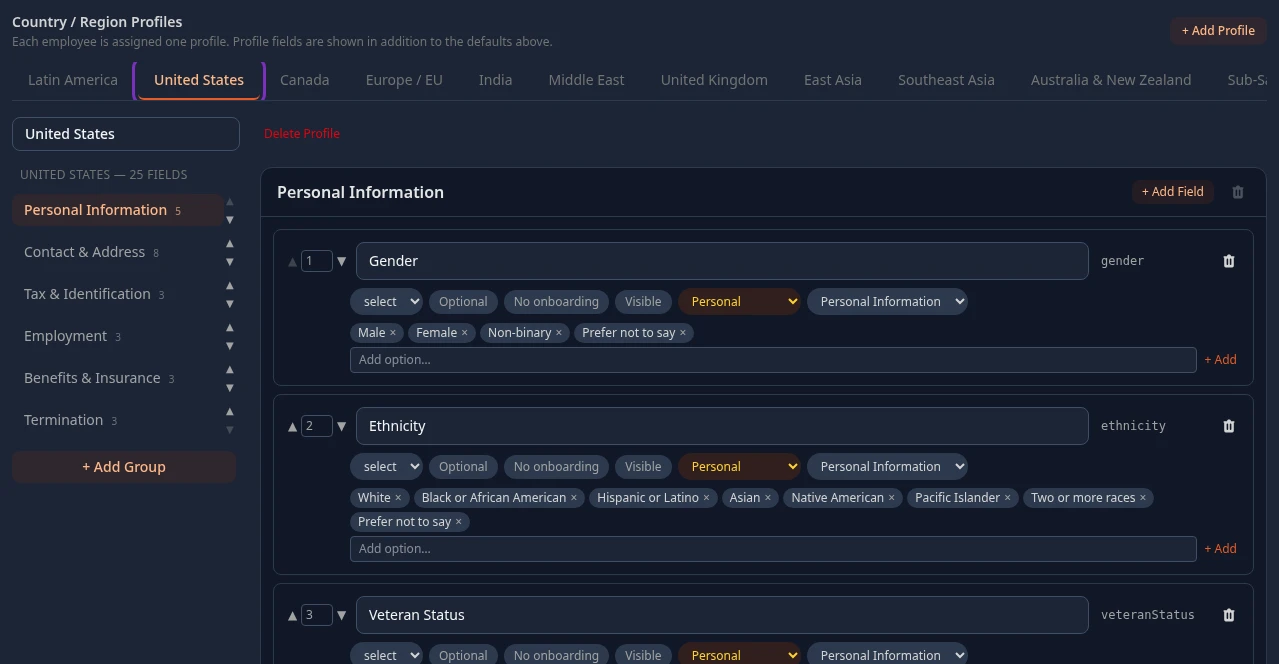
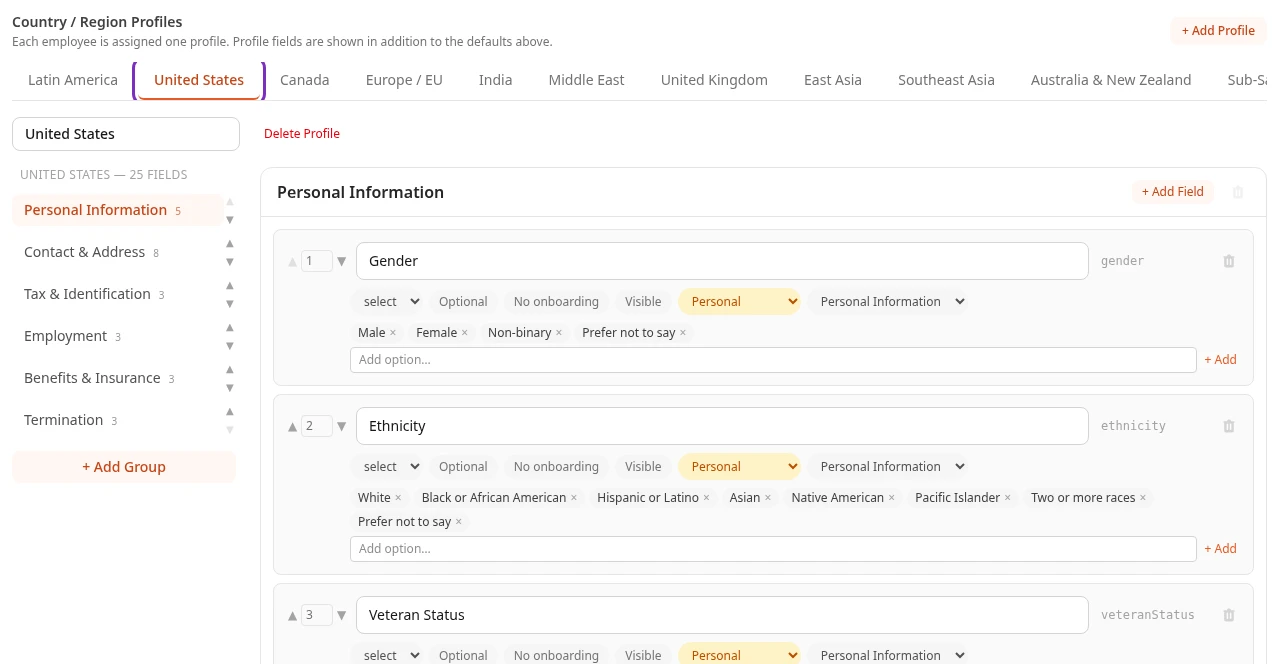
The setup wizard asks Where are your employees based? and makes only the regions you pick available to people. The others stay in Settings, where you can edit them, but you can’t give them to anyone.
To change the fields of a profile, see Set up HR profile fields.
Give someone an HR profile
Section titled “Give someone an HR profile”-
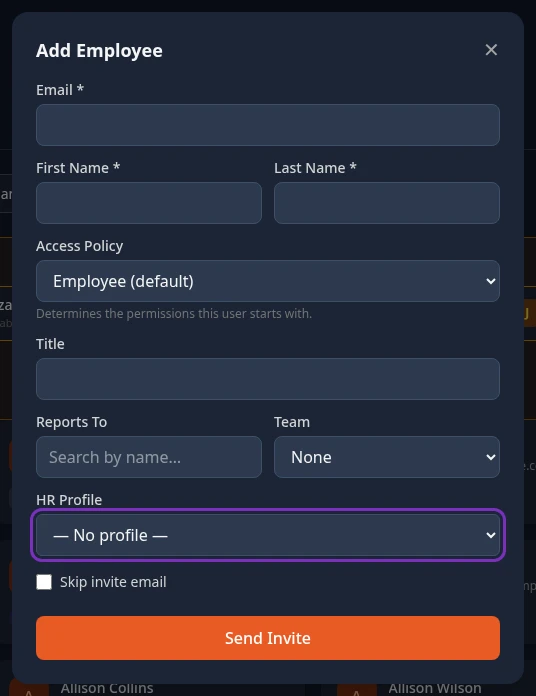
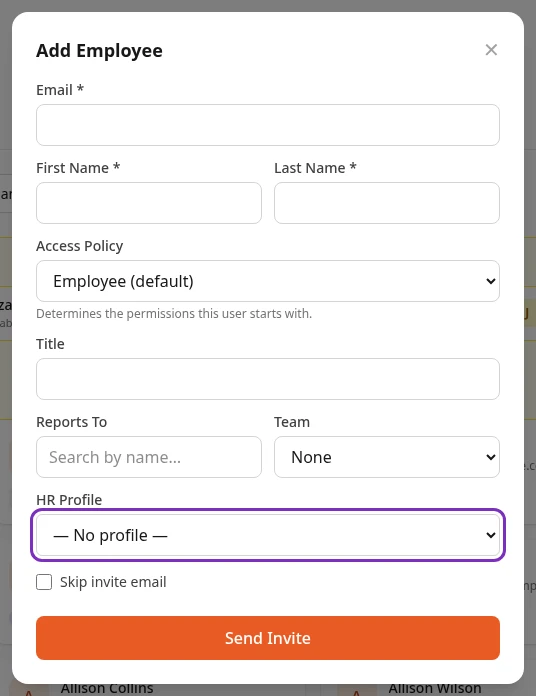
Select People in the menu bar, then + Add Employee.
-
Fill in the person’s details, and choose their country or region in HR Profile.
-
Select Send Invite.
- HR Profile only lists the regions picked in the setup wizard.
- Someone with — No profile — only has the fields everyone has: no country fields.
- On a profile, the HR Profile row of Work Information shows the person’s HR profile, but only when your company uses more than one.
To change someone’s HR profile later, including people who joined through single sign-on or were hired in Hiring and start with none, open their profile, select Edit Profile and pick it in HR Profile.
Add, rename or delete an HR profile
Section titled “Add, rename or delete an HR profile”- Rename: open the profile’s tab and change the name in the box above its groups.
- Add: select + Add Profile. A profile called New Profile opens, with one group, General. Rename it, then add groups and fields.
- Delete: open the profile and select Delete Profile, then confirm. The profile and its fields leave the form; select Save changes to apply it. People who had it keep it in name, but their profile no longer shows its fields.
Reset to defaults, at the bottom of the tab, puts back all 11 built-in profiles. It also drops every field and profile you added, so use it with care. The HR Profile lists still offer only the regions picked in the setup wizard.