Change who approves requests
An approval flow decides who has to approve a request, in what order, before it takes effect. Time off, salary changes, terminations, job offers and new hires each have a built-in flow. Each step of a flow puts the request in an approver’s Inbox, as Approve or reject requests in your Inbox explains. The built-in flows work without changes; change them only if your company approves things differently.
Open the approval flows
Section titled “Open the approval flows”-
Select Settings in the menu bar, after turning on admin mode: select your name at the top right, then Elevate to Admin.
-
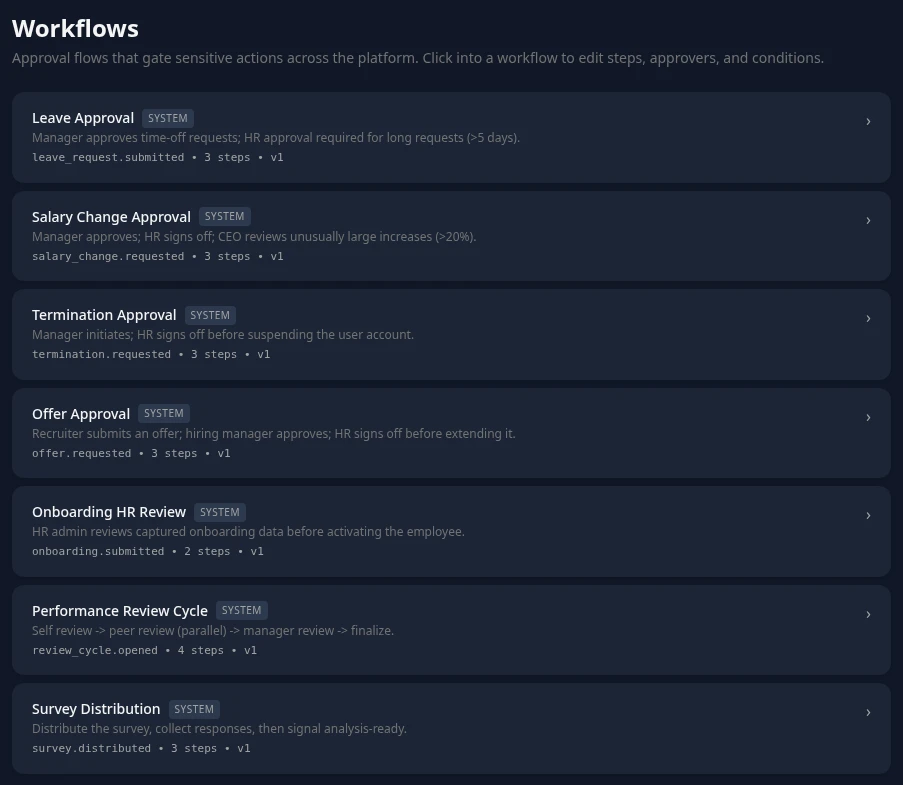
Open Approvals. It goes straight to Workflows, the list of flows.
-
Select a flow to see and change its steps.
The page and the editor are only in English for now.
The built-in flows
Section titled “The built-in flows”| Flow | Starts when | Steps, by default |
|---|---|---|
| Leave Approval | An employee requests time off. | The employee’s manager, then the HR Admins if the request is longer than 5 days. Then the request is approved. |
| Salary Change Approval | Someone requests a salary change on a profile. | The manager of the person who made the request, then the HR Admins. |
| Termination Approval | Someone records an employee’s departure. | The manager of the person who recorded it, then the HR Admins. |
| Offer Approval | A recruiter creates an offer for a candidate. | The job’s hiring manager, then the HR Admins. |
| Onboarding HR Review | A new person sends in the welcome form. | The HR Admins. Approving activates the person. |
| Performance Review Cycle | Nothing starts this flow yet. | |
| Survey Distribution | Nothing in the app starts this flow yet. |
How a step works
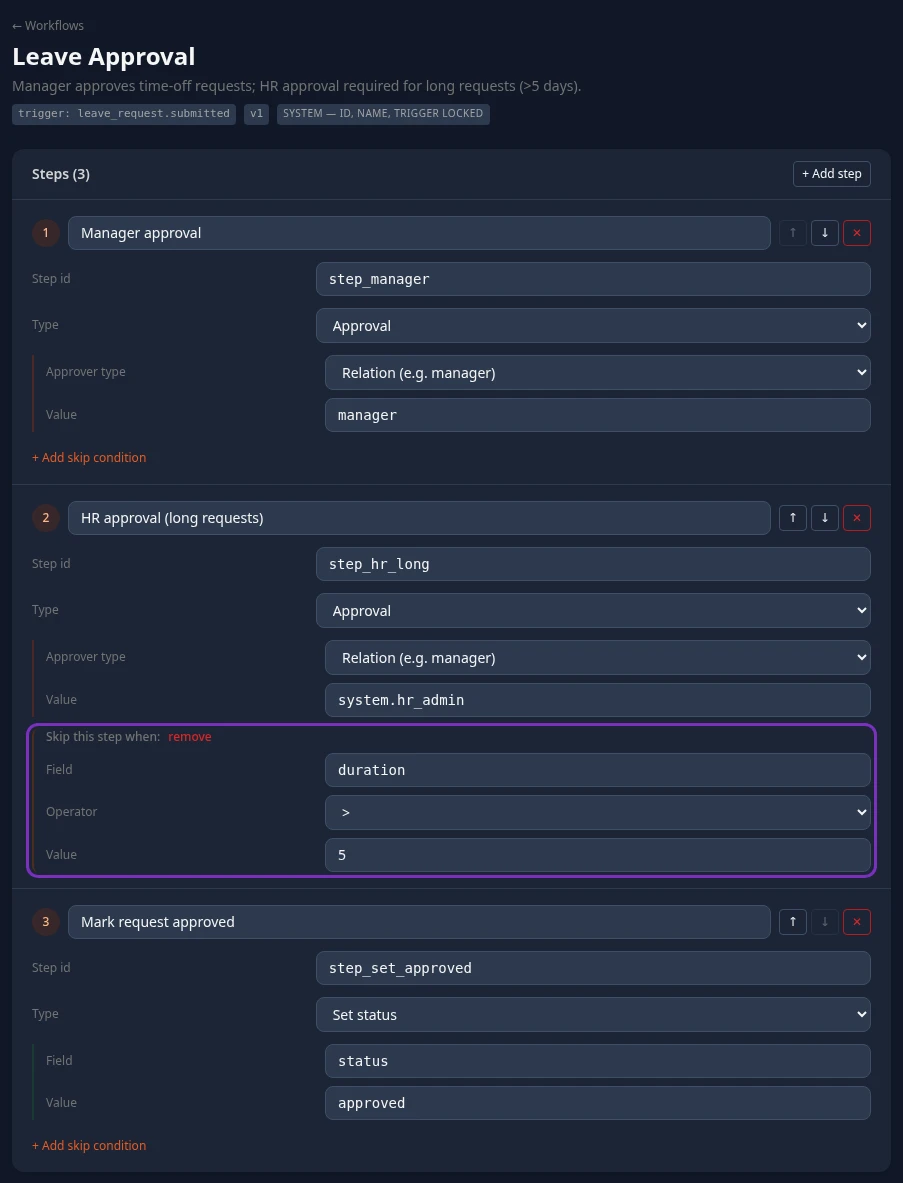
Section titled “How a step works”Select a flow to open it. Each step has a name, a Step id and a Type.
| Type | What it does |
|---|---|
| Approval | Waits for one of its approvers to approve or reject. A rejection ends the flow and rejects the request. |
| Condition | Jumps to the Then step when its expression is true, or to the Else step when it’s false. With — next step in order —, the flow goes on to the next step. |
| Set status | Changes a field of the request, such as its status to approved. The built-in flows end with one. Leave these steps as they are. |
| Notification | Sends an in-app notification and moves on. See Notifications. |
Use ↑ and ↓ to reorder steps, ✕ to remove one, and + Add step to add an approval step at the end.
Who approves a step
Section titled “Who approves a step”An Approval step’s Approver type and Value decide who gets it:
| Approver type | Value | Who gets the step |
|---|---|---|
| Relation (e.g. manager) | manager |
The manager of the person who made the request. |
self |
The person who made the request. | |
hiring_manager |
The job’s hiring manager, on offers. | |
| Role id | A role’s ID from Settings › Access › Roles, such as system.hr_admin or system.finance |
Everyone who holds that role, directly or through a group. Any one of them can decide. |
| Specific user id | A person’s user id: the last part of the address of their profile, starting usr_ |
That person. |
Any other relation stops the flow from starting. The request is still created, but nothing reaches anyone’s Inbox.
When a step has no approver, for example because the manager is suspended or nobody holds the role, it goes to the HR Admins, and to the Admins if there are none. Nobody is asked to approve their own request: they’re left out of the step, except on a self step.
Conditions
Section titled “Conditions”+ Add skip condition adds a condition to any step: a Field of the request, an Operator and a Value.
Fields you can use:
- Time off:
duration(the number of days requested) andleaveType, such asvacation. - Salary changes:
newSalaryandpreviousSalary. - Terminations and new hires: fields of the person’s record, such as
teamorarea.
Numbers stored as text are compared as numbers. A field that doesn’t exist makes the condition false.
Notifications
Section titled “Notifications”- When a request reaches an Approval step, each of its approvers gets an Approval requested notification under the bell, and the request waits on the Approvals tab of their Inbox.
- When a flow ends, the person who made the request is notified that it was approved or rejected. Termination Approval only notifies them of a rejection, and Onboarding HR Review only when it’s approved.
- Notifications are in the app only; no emails are sent. A Notification step always shows the same Approval requested text, whatever its Template id. Its Email channel and its Role recipient don’t work yet: a step that names a role notifies nobody.
There are no reminders, deadlines or escalations. A request waits on its step until someone decides.
Change a flow
Section titled “Change a flow”-
Open the flow and change its steps.
-
Select Save, at the top right. Reset undoes your changes.


Workflow saved confirms the change. If something is wrong, such as an approval step with no approver or a condition that jumps to a step that doesn’t exist, Save rejected – fix these issues: lists the problems and nothing is saved.
On the built-in flows, the name, the trigger and the flow’s id can’t be changed. You can’t add a new flow, delete one, or go back to the built-in steps from this page, so note the original steps before you change a flow.
What an edit changes for requests already waiting
Section titled “What an edit changes for requests already waiting”The v1 next to a flow doesn’t change when you save, and requests already waiting aren’t kept on the old version:
- A request keeps the approvers it already has for the step it’s waiting on.
- Once that step is decided, the request goes on with the steps as you saved them.
- If you remove a step that requests are waiting on, or change its Step id, those requests can’t be approved or rejected from the Inbox anymore.
Never change the Step id of an existing step, and make bigger changes when no requests are waiting.
Decisions made outside the flow
Section titled “Decisions made outside the flow”Time off can also be approved from Time Off, by managers for anyone in their org and by HR Admins for everyone. HR Admins can also approve salary changes from the employee’s profile. Every decision made there still goes through the flow:
- In the place of the person a step is waiting for. A skip-level manager can decide a manager step, and an HR Admin or an Admin in admin mode can decide any step. The decision counts for that step only: the item leaves the approver’s Inbox and the next steps still run, so a long request still goes to HR. Managers can’t decide an HR step: they see This request is waiting on another approver, such as HR. It moves on once they decide.
- Override. HR Admins and Admins in admin mode can select Override on a time-off request or a pending salary change, choose Approve or Reject and give a Reason. The request is decided at once and the steps still ahead are skipped. The history shows the override, the reason and who it skipped. Nobody can override their own request, or a salary change they requested.
A decided request stays decided. If an Inbox item is left over from a request that was decided before this change, deciding it shows This item changed since you opened it. Refresh to see its current status. and the item is removed.
Can’t see this?
Section titled “Can’t see this?”- There’s no Approvals card in Settings, or it doesn’t open. Turn on admin mode. HR Admins see the card but can’t open it: changing flows needs Manage definitions in Approvals, which only Admins have by default.
- The Approvals card is under Disabled. Turn the Approvals module back on with its switch. While it’s off, requests still go through the flows and can still be decided in the Inbox; only this page is out of reach.
- A request isn’t in anyone’s Inbox. Its flow couldn’t start, for example because a step uses a relation that doesn’t exist. It can still be decided from Time Off or the profile.